Windows Forms Integration
It's possible to render TinyFFR scenes as a Windows Forms control.
Installation#
Install Egodystonic.TinyFFR.WinForms from Nuget in to your Winforms application project.(1)
- This package contains a transitive reference to
Egodystonic.TinyFFRso you won't need to explicitly install both, but if you do decide to reference both please make sure their version numbers match.
TinyFfrSceneView#
TinyFFR integration is offered primarily as a TinyFfrSceneView control which can be used like any other Winforms control. A TinyFfrSceneView allows you to invoke Render() on a given Renderer(1) (set as a property on the control), and the updated scene will be displayed on this control's client area.
- You must bind a specific "Bindable" renderer; see bullet points below.
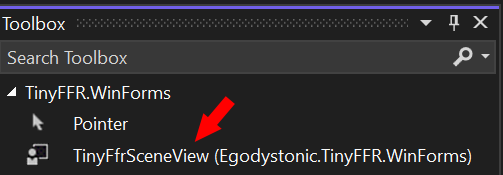
The following properties can be adjusted for a TinyFfrSceneView (some via the properties box at design time, some must be set programmatically):
-
The
FallbackBrushproperty is optional and can be used to set the fill brush of the control when no renderer has been set and/or when no scene has been rendered. -
The
InternalRenderResolutionproperty is also optional and can be used to set the internal resolution scenes will be rendered at before being scaled to the size of the control.(1) If left unset, scenes will always be rendered at the size of the control bounds.- The height and width of the render resolution of a scene view must both be between
1and32768.
- The height and width of the render resolution of a scene view must both be between
-
The
Rendererproperty must be set to aRendererinstance created via theCreateBindableRendererextension method on anIRendererFactoryinstance. Attempting to set a non-bindable renderer will fail. See next section:
The Renderer#
The Renderer should be created via CreateBindableRenderer using a pre-created Scene and Camera; e.g:
sceneView.Renderer = factory.RendererBuilder.CreateBindableRenderer(scene, camera, factory.ResourceAllocator); // (1)!
- This extension method is provided in the
Egodystonic.TinyFfr.WinFormspackage under theEgodystonic.TinyFFR.Renderingnamespace (the same namespace as theIRendererBuildertype).
Each time you invoke Render() on this Renderer it will invoke an update to the frame/image for any TinyFfrSceneView that has it set as the Renderer property.
You should not set a disposed Renderer or a non-bindable Renderer to a TinyFfrSceneView's Renderer property. Similarly, you should not dispose a Renderer and leave it set on a TinyFfrSceneView. The Renderer property can be set to null (at which point the FallbackBrush will be used to fill the control's client area).
Input, Loop, and Threading#
The input and application-loop management subsystem is mostly disabled when using Winforms integration.
- Input should be handled via Winforms' built-in input layer instead.
- All interaction with your UI and TinyFFR should be done in the UI Dispatcher context (e.g. on the UI thread).
ApplicationLoop contraindicated
When using TinyFFR standalone you must use the ApplicationLoop system in order to access user input events and set a framerate/tickrate. However, UI frameworks (such as Windows Forms) already have a separate built-in render loop and input handling rubric and it is not advisable to mix the two approaches.
Attempting to access input data via TinyFFR's ApplicationLoop/ILatestInputRetriever could cause your Winforms application to "miss" input events. Instead, use Winforms' built-in event system to manage input events. When integrating TinyFFR with Winforms it is advisable to not create any ApplicationLoop instances if possible.
If you want to create a render/tick loop, see the "Automatic Animation" section below, which offers an alternative mechanism that doesn't directly create an ApplicationLoop.
If you still want to use ApplicationLoops for niche scenarios, it is advisable to set the config value IterationShouldRefreshGlobalInputStates to false when creating them.
Automatic Animation#
If your application requires the scene view to be animated you can achieve this via the extension method "StartWinFormsUiLoop()" supplied on the ILocalApplicationLoopBuilder interface.(1)
- This extension method is provided in the
Egodystonic.TinyFfr.WinFormspackage under theEgodystonic.TinyFFR.WinFormsnamespace.
This method allows you to supply a callback delegate that will be invoked at a target frequency (e.g. 30Hz) on the UI context (e.g. the UI thread). You can render your scene on each tick (like you would inside an ApplicationLoop in a standalone TinyFFR application):
// Example Tick function
void Tick(TimeSpan tickIterationTime) {
    var deltaTime = tickIterationTime.AsDeltaTime()

    // Render one frame each tick
    sceneView.Renderer.Render();

    // Manipulate objects in the scene also
    _instance.RotateBy(deltaTime * 130f % Direction.Up);
    _instance.RotateBy(deltaTime * 80f % Direction.Right);

    // It's safe to touch UI/control data and TinyFFR objects here; this function is guaranteed to be executed on the UI context
    MyBoundProperty = SomeNewValue();
}

// You can start this loop like so...
var loopTerminationDisposable = factory.ApplicationLoopBuilder.StartWinFormsUiLoop(Tick);

// Dispose "loopTerminationDisposable" to stop the loop...
loopTerminationDisposable.Dispose();
This function schedules your tick/render loop on the pre-existing Winforms UI dispatcher loop, integrating it in to the UI subsystem, and is preferred over creating an ApplicationLoop manually (see warning above). The function takes optional arguments as follows:
-
StartWinFormsUiLoop(tickCallback, tickRateHz, name) -
-
tickCallbackis theAction<TimeSpan>that you wish to be invoked on the UI thread/context. The singular argument is aTimeSpanindicating the "delta time" since the last 'tick'. -
tickRateHzis optional, this sets the target framerate for the animation loop. Please note that the maximum framerate may be limited by the UI framework compositor and/or dispatcher loop mechanism. You should also note that the 'consistency' (e.g. jitter) of the framerate will likely be much more variable than with a typical standalone TinyFFR application loop. -
nameis optional, this will set the name of the underlyingApplicationLoopresource used internally by TinyFFR.
This function returns an
IDisposablethat should be disposed when you wish to terminate the loop. -