Camera-Locked Objects
-
 In a nutshell...
- Camera-locked quads and text have their orientation 'locked' to always face the camera. Camera-Locked Objects
- They can additionally be sized in world units, or keep a constant size on screen. Scaling Mode
Camera-Locked Objects#
using var marker = factory.ObjectBuilder.CreateCameraLockedQuadInstance( // (1)!
    quadMesh,
    markerMaterial,
    position: new Location(0f, 2f, 5f),
    size: new XYPair<float>(0.5f, 0.5f)
);

using var nameplate = factory.ObjectBuilder.CreateCameraLockedTextInstance( // (2)!
    pen,
    nameString,
    position: new Location(0f, 2.5f, 5f),
    lockedUprightDirection: Direction.Up,
    layout: new TextLayout(0.04f, Orientation2D.Down),
    scalingMode: CameraLockedScalingMode.ViewportFractionalFixedHeightPlusPreservedAspectRatio,
    lockStyle: CameraLockStyle.FaceCameraPlane
);

scene.Add(marker); // (3)!
scene.Add(nameplate);
-
Creates a 0.5m × 0.5m quad that is always seen face-on.
-
Creates a text label that stays upright, sits square-on to the screen, and is always 4% of the screen's height tall; with the bottom-centre of the text at the given position.
-
Camera-locked objects are added to a scene like any other object.
A camera-locked object is a quad or piece of text that is rendered such that it always faces the camera (a technique often called billboarding). They're commonly used for:
- Labels, nameplates, and markers that must always be legible.
- Icons and other user-interface-like elements placed in the world.
- Flat images that stand in for 3D objects (e.g. distant trees, or particles such as smoke and sparks), which would otherwise vanish when seen from the side.
Implementation#
There are two kinds of camera-locked object: CameraLockedQuadInstance and CameraLockedTextInstance. Each is a specialized view of an ordinary QuadInstance or TextInstance (available via its UnderlyingQuadInstance or UnderlyingTextInstance property), and disposing one disposes its underlying instance.
Because they turn themselves to face the camera, camera-locked objects can be positioned and scaled, but not rotated.
Add The Camera-Locked Object Itself
Only the camera-locked object turns to face the camera. If you add its underlying quad or text instance to a scene instead (e.g. scene.Add(nameplate.UnderlyingTextInstance)), it's treated as an ordinary quad or text instance, and won't follow the camera.
Creating Camera-Locked Objects#
Camera-locked quads are created with factory.ObjectBuilder.CreateCameraLockedQuadInstance(); and camera-locked text instances are created with factory.ObjectBuilder.CreateCameraLockedTextInstance(). Both accept the following parameters:
-
position -
Where to place the object's anchor point. Defaults to the origin. See Position & Anchor.
-
lockedUprightDirection -
Which direction the object keeps as its "up" as it turns. Defaults to
Direction.None(meaning it can turn freely). See Upright Direction. -
positionAnchor -
Which point of the object is placed at
position. Defaults toOrientation2D.None(the object's centre). See Position & Anchor. -
scalingMode -
How the object is sized. Defaults to
CameraLockedScalingMode.Standard. See Scaling Mode. -
lockStyle -
How the object decides which way to face. Defaults to
CameraLockStyle.FaceCameraPlane. See Lock Style. -
name -
An optional name for the object.
Quads can also specify a size; text instances specify their layout (which includes the sizing information).
The four camera-lock settings (LockedUprightDirection, PositionAnchor, ScalingMode, and LockStyle) are fixed when the object is created, and can be read back via the properties of the same names.
Upright Direction#
The lockedUprightDirection controls which axes a camera-locked object may turn around to face the camera:
Direction.None(the default): The object turns freely on every axis, so it always faces the camera squarely, even when the camera looks down on it from above. This suits icons, in-world diagnostic information, and 'HUD' markers.- Any other direction (e.g.
Direction.Up): The object only turns around that axis, so it stays upright like a tree or a signpost. When the camera looks down on it, it's seen at an angle (just as a real signpost would be). This suits objects that stand on the ground or out from a wall, and also labels that should stay upright.
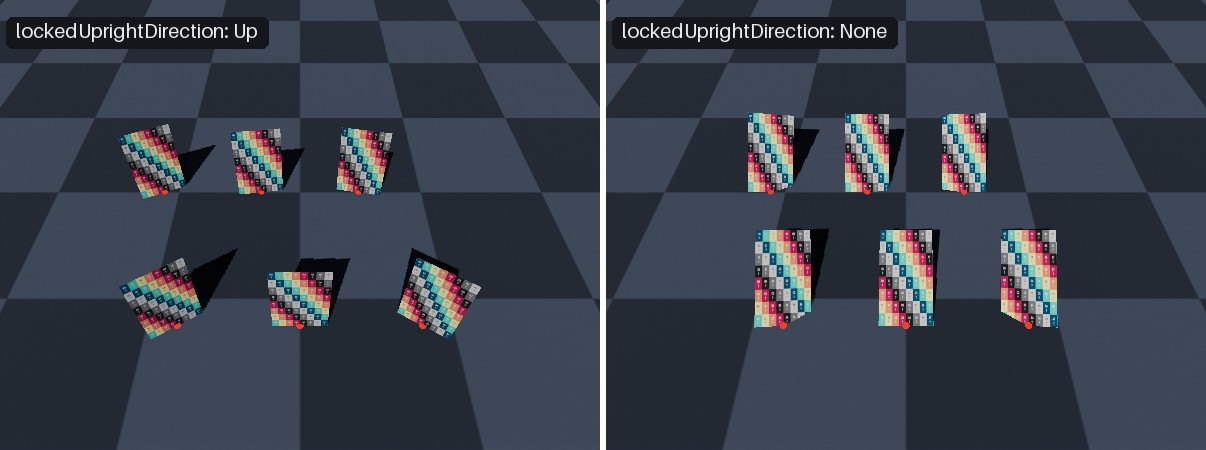
Camera-locked quads anchored at the red markers, seen from above. On the left, locked to stay upright (Direction.Up): they stand vertically like signposts. On the right, free to turn on every axis (Direction.None): they tilt back to face the camera squarely.
Lock Style#
The lockStyle (a CameraLockStyle) controls what "facing the camera" means:
-
CameraLockStyle.FaceCameraPlane -
The object turns to sit square-on to the screen, sharing the camera's orientation rather than aiming at its position.
Flat content such as text stays perfectly undistorted wherever it appears on screen, which makes this the better choice for labels and other user-interface-like elements.
This is the default, is usually what you actually want, and is also considerably cheaper on performance than
FaceCameraPosition. -
CameraLockStyle.FaceCameraPosition -
The object turns to point directly at the camera's position.
This is much more expensive to render than
FaceCameraPlaneand should be used sparingly.
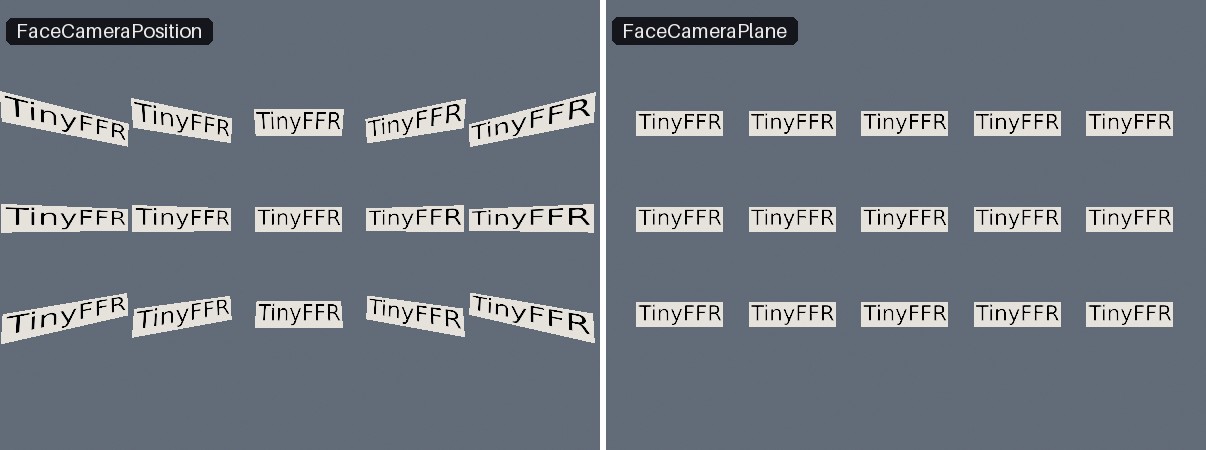
A grid of camera-locked text seen through a wide field of view. On the left, FaceCameraPosition turns each label towards the camera, skewing those towards the edges; on the right, FaceCameraPlane keeps every label square-on to the screen.
Scaling Mode#
The scalingMode (a CameraLockedScalingMode) controls how a camera-locked object is sized:
CameraLockedScalingMode |
Width | Height |
|---|---|---|
Standard (default) |
World units | World units |
ViewportFractionalFixedWidth |
Fraction of the screen width | World units |
ViewportFractionalFixedHeight |
World units | Fraction of the screen height |
ViewportFractionalFixedWidthAndHeight |
Fraction of the screen width | Fraction of the screen height |
ViewportFractionalFixedWidthPlusPreservedAspectRatio |
Fraction of the screen width | Matches the width (keeps the object's shape) |
ViewportFractionalFixedHeightPlusPreservedAspectRatio |
Matches the height (keeps the object's shape) | Fraction of the screen height |
In Standard mode, a camera-locked object is sized in world units exactly like any other object, so it appears smaller the further it is from the camera.
The ViewportFractional modes instead size the object as a fraction of the rendered image, so it keeps the same size on screen however far away it is (and whatever resolution the image is rendered at). A value of 1f means the full width or height of the screen, so 0.05f means 5% of the screen. For camera-locked text, it's the height (or width) given in its TextLayout that is the fraction.
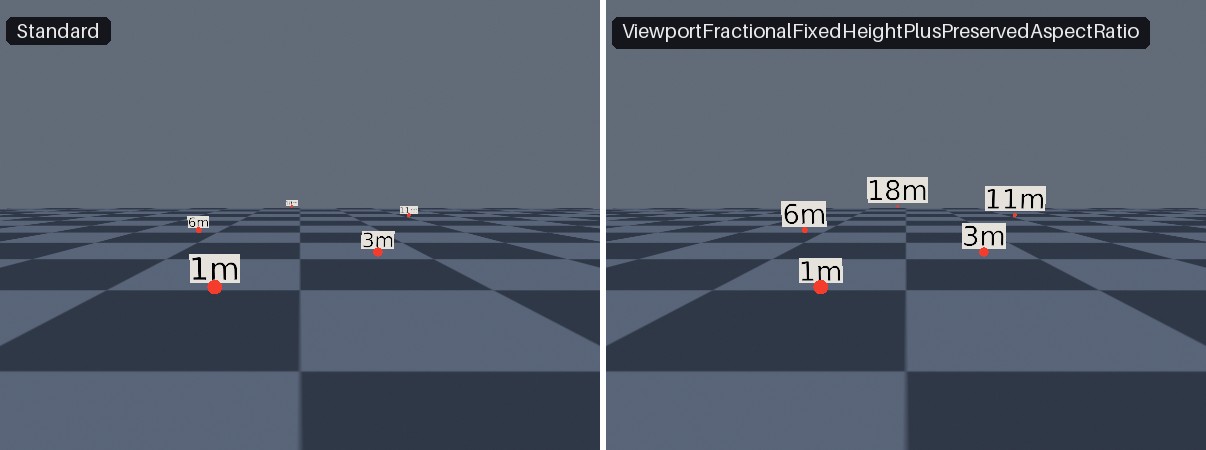
Camera-locked labels at increasing distances. On the left, Standard scaling- they shrink with distance like any other object. On the right, ViewportFractionalFixedHeightPlusPreservedAspectRatio- they stay the same size on screen regardless of distance from the camera.
ViewportFractionalFixedHeightPlusPreservedAspectRatio(fixed height) is usually the best choice for labels, icons, and other in-world user-interface elements because it keeps the object's shape regardless of the window's aspect ratio. Because text is variable in length but not height, this option is preferable overViewportFractionalFixedWidthPlusPreservedAspectRatio(fixed width).ViewportFractionalFixedWidthAndHeightties each axis to a different dimension of the screen, so the object stretches or squashes as the window's aspect ratio changes.- The object's
Scalingreads back the fraction (e.g.(0.1, 0.05)), not its size in the world (unless you're usingStandardscaling mode). - The fractional modes also work with orthographic cameras (where every object is already the same size at any distance), sizing objects relative to the camera's
OrthographicHeightand aspect ratio.
Position & Anchor#
using var nameplate = factory.ObjectBuilder.CreateCameraLockedTextInstance(
    pen,
    nameString,
    position: character.Position + Direction.Up * 2f,
    lockedUprightDirection: Direction.Up,
    layout: new TextLayout(0.04f, Orientation2D.Down), // (1)!
    scalingMode: CameraLockedScalingMode.ViewportFractionalFixedHeightPlusPreservedAspectRatio,
    lockStyle: CameraLockStyle.FaceCameraPlane
);

// Per-frame:
nameplate.Position = character.Position + Direction.Up * 2f; // (2)!
-
Orientation2D.Downanchors the text by the middle of its bottom edge. -
Keeps the bottom of the nameplate 2m above the character's position, no matter how the nameplate turns or how big it is on screen.
A camera-locked object's PositionAnchor sets which point of the object sits at its Position (e.g. Orientation2D.Down for the middle of its bottom edge, or Orientation2D.None for its centre). As the object turns to face the camera, and as its size changes (either because you change its Scaling, or because a fractional scaling mode resizes it), the object pivots and grows around that point, so the anchor point always stays exactly at Position.
This makes anchors useful for attaching camera-locked objects to other things, e.g. a nameplate anchored at Down sits just above a character's head without overlapping it, however large it is.
Ordinary quads and text are anchored in the same way, but while an object is camera-locked, it's the camera-locked object's own PositionAnchor that applies.
Multiple Cameras & Scenes#
A camera-locked object is turned to face the camera every time a renderer renders a scene containing it, just before that scene is drawn. This means:
- A camera-locked object in several scenes, or in a scene rendered by several renderers with different cameras, correctly faces each camera as it's drawn.
- The object's orientation (and, in
Standardmode, its underlying instance'sTransform) reflects whichever render happened most recently. There's no need to set it yourself; anything you set will be overwritten by the next render.
Performance#
Turning objects to face the camera costs a small amount of CPU time per object per render. This is negligible for a handful of objects, but worth considering if you have thousands. From cheapest to most expensive:
CameraLockStyle.FaceCameraPlanewith nolockedUprightDirection(Direction.None), nopositionAnchor(Orientation2D.None), andStandardscaling. Every such object shares the same orientation, which is calculated once per render.- As above, but with a fractional scaling mode, which requires the object's size to be recalculated individually.
- Any other combination (a locked upright direction, a position anchor, or
FaceCameraPosition), which requires the object's orientation to be calculated individually.
FaceCameraPosition is the most expensive of all, as each object must aim at the camera from its own position.
Other Details#
- Camera-locked objects can be wrapped in a
SceneObject, which supports their position and scaling (and, for quads, material) members. - A
ResourceGrouplists them underCameraLockedQuadInstancesandCameraLockedTextInstances. - Scene queries return the object's underlying
ModelInstance.CameraLockedQuadInstance.FromPreviouslyAllocatedUnderlyingQuadInstance()orCameraLockedTextInstance.FromPreviouslyAllocatedUnderlyingTextInstance()can be used to reconstruct from this model instance. CameraLockedQuadInstanceimplementsIQuadInstancealongside the plainQuadInstance.