Reacting to User Input
-
Overview View Code on Github
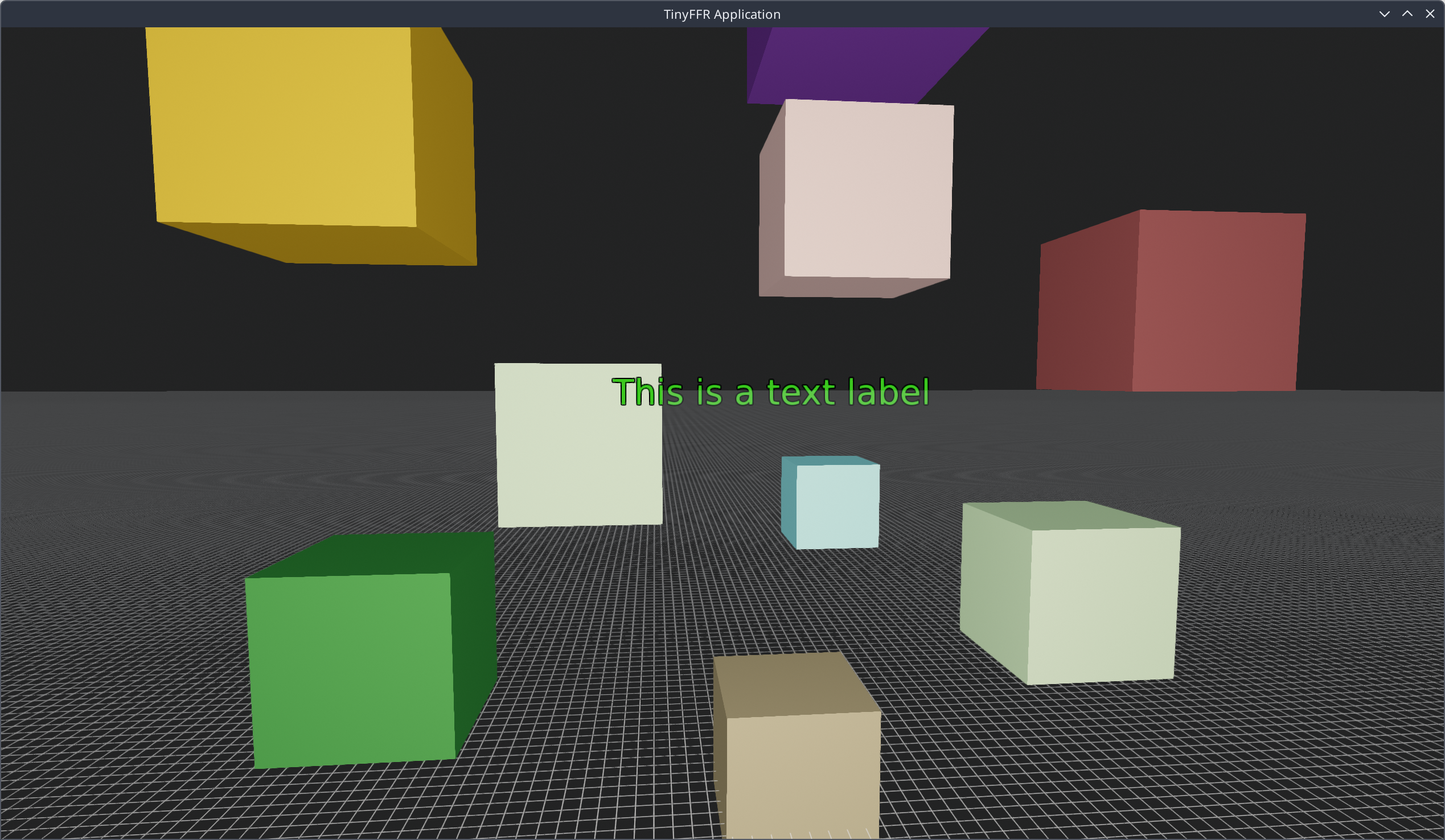
This tutorial builds on Hello Cube. In this example, we will:
- Use a camera controller to fly the camera around the world;
- Add, remove, and rescale cubes in the scene;
- Let the user type a text label in to the scene when Enter is pressed;
- Exit the application when pressing Escape.
It's assumed that you've read the Hello Cube tutorial first, as things that were explained there won't be explained again in detail here.
Project Setup#
Unlike Hello Cube, this example is set up as an ordinary .NET project. You can create one in an empty folder with the following two commands:
Alternatively, create a folder containing a UserInput.csproj file with the following contents:
<Project Sdk="Microsoft.NET.Sdk">

    <PropertyGroup>
        <OutputType>Exe</OutputType>
        <TargetFramework>net10.0</TargetFramework>
        <ImplicitUsings>enable</ImplicitUsings>
        <Nullable>enable</Nullable>
    </PropertyGroup>

    <ItemGroup>
        <PackageReference Include="Egodystonic.TinyFFR" Version="*" />
    </ItemGroup>

</Project>
Then, replace the contents of Program.cs with the code shown below.
Running the Application#
Open a terminal or command prompt in your project folder and run: dotnet run -c Release.
A window will appear showing a chequered ground plane, and the mouse cursor will be captured by the window. The controls are:
| Input | Action |
|---|---|
| Mouse | Look around (while not typing) |
| Arrow keys | Fly forward/backward/left/right (while not typing) |
| Right Shift / Right Ctrl | Fly up / down (while not typing) |
| Space | Add a cube in front of the camera |
| Enter | Start typing a text label in front of the camera; press Enter again to confirm it |
| Backspace | Remove everything from the scene (or, while typing, delete the last character) |
| Mouse wheel | Grow / shrink the last cube you added (5cm per stop) |
| Escape | Exit |
Annotated Code#
This is the entirety of the "User Input" example's Program.cs. Click on the icons next to each line to learn more.
using System.Text;
using Egodystonic.TinyFFR;
using Egodystonic.TinyFFR.Environment.Input;
using Egodystonic.TinyFFR.Factory.Local;
using Egodystonic.TinyFFR.Resources.Memory;
using Egodystonic.TinyFFR.World;

// Variables & constants
// (1)!
const string PlaceholderText = "Awaiting Text Input...";
var inProgressTextPrimitive = (ScenePrimitive?) null;
var inProgressTextLocation = new Location();
var inProgressTextChars = (INonDisposableArrayPoolBackedList<char>?) null;
var mostRecentlyAddedCubePrimitive = (ScenePrimitive?) null;
var mostRecentlyAddedCubeShape = PositionedRotatedCuboid.UnitCubeAtOriginUnrotated;
var groundPlaneShape = new Plane(Direction.Up, Location.Origin);

// Setup
using var factory = new LocalTinyFfrFactory();
var primaryDisplay = factory.DisplayDiscoverer.Primary ?? throw new InvalidOperationException("No display connected!");
using var window = factory.WindowBuilder.CreateWindow(primaryDisplay);
using var scene = factory.SceneBuilder.CreateScene();
using var camera = factory.CameraBuilder.CreateCamera();
using var cameraController = camera.CreateController<FreeFlyingCameraController>(); // (2)!
using var renderer = factory.RendererBuilder.CreateRenderer(scene, camera, window);
using var loop = factory.ApplicationLoopBuilder.CreateLoop();

window.LockCursor = true; // (3)!
cameraController.Position = (0f, 1f, -3f); // (4)!
scene.AddPrimitiveShape(groundPlaneShape); // (5)!

// Loop
while (!loop.Input.UserQuitRequested) {
    var deltaTime = loop.IterateOnce().AsDeltaTime();
    var kbm = loop.Input.KeyboardAndMouse; // (6)!

    if (kbm.KeyWasPressedThisIteration(KeyboardOrMouseKey.Escape)) break; // (7)!

    var spawnLocation = camera.Position
        + camera.GetRelativeOrientationDirection(Orientation.Forward) * 2f; // (8)!

    if (inProgressTextChars is not { } list) { // (9)!
        if (kbm.KeyWasPressedThisIteration(KeyboardOrMouseKey.Backspace)) { // (10)!
            scene.RemoveAll(); // (11)!
            scene.AddPrimitiveShape(groundPlaneShape); // (12)!
            mostRecentlyAddedCubePrimitive = null; // (13)!
        }

        if (kbm.KeyWasPressedThisIteration(KeyboardOrMouseKey.Space)) {
            mostRecentlyAddedCubeShape = new PositionedRotatedCuboid( // (14)!
                new Cuboid(0.5f),
                spawnLocation,
                Rotation.None
            );
            mostRecentlyAddedCubePrimitive = scene.AddPrimitiveShape( // (15)!
                mostRecentlyAddedCubeShape,
                new PrimitivePaintbrush(ColorVect.RandomOpaque())
            );
        }

        if (kbm.MouseScrollWheelDelta != 0 && mostRecentlyAddedCubePrimitive is { } primitive) { // (16)!
            var adjustedShape = mostRecentlyAddedCubeShape
                .WithAllExtentsAdjustedBy(-kbm.MouseScrollWheelDelta * 0.05f); // (17)!
            if (adjustedShape.SmallestExtent >= 0.05f) { // (18)!
                mostRecentlyAddedCubeShape = adjustedShape; // (19)!
                primitive.SetGeometryShape(mostRecentlyAddedCubeShape); // (20)!
            }
        }

        if (kbm.KeyWasPressedThisIteration(KeyboardOrMouseKey.Return)) {
            inProgressTextChars = factory.ResourceAllocator.GetSharedScratchList<char>(); // (21)!
            inProgressTextLocation = spawnLocation; // (22)!
            inProgressTextPrimitive = scene.AddPrimitiveString( // (23)!
                inProgressTextLocation,
                PlaceholderText,
                ScenePrimitiveSize.VeryLarge
            );
            loop.EnableInputTextTranscription = true; // (24)!
        }

        cameraController.AdjustAllViaDefaultControls(kbm, deltaTime); // (25)!
        cameraController.Progress(deltaTime); // (26)!
    }
    else { // (27)!
        list.AddRange(kbm.TranscribedText); // (28)!
        if (kbm.KeyWasPressedThisIteration(KeyboardOrMouseKey.Backspace) && list.Count > 0) { // (29)!
            list.RemoveAt(list.Count - 1);
        }
        inProgressTextPrimitive!.Value.SetGeometryString( // (30)!
            inProgressTextLocation,
            list.Count > 0 ? list.BackingSpan : PlaceholderText,
            ScenePrimitiveSize.VeryLarge
        );

        if (kbm.KeyWasPressedThisIteration(KeyboardOrMouseKey.Return)) { // (31)!
            inProgressTextPrimitive!.Value.SetPaintbrush(new PrimitivePaintbrush(StandardColor.Green, StandardColor.Black));
            loop.EnableInputTextTranscription = false;
            inProgressTextPrimitive = null;
            inProgressTextChars = null;
        }
    }

    renderer.Render();
}
-
The variables declared here are each explained at the point they're used below.
-
Here we create a camera controller attached to
camera. Whereas camera objects in TinyFFR have fundamental controls allowing you to position, rotate, orient them etc, a camera controller lets you operate a camera according to a specific control scheme (either via user input or programmatically).In this case we're creating a
FreeFlyingCameraController, which makes it easy to "fly" the camera around the scene, using the keyboard to move the camera and the mouse to re-orient it. -
Setting
window.LockCursortotruemeans that as soon as the window gets focus it will "steal" and lock the mouse cursor inside it.This is useful for applications where want the mouse to control the camera.
-
Now that we have a camera controller controlling
camera, we must set our target position etc. via the controller. -
This adds a ground plane to the scene (shown as an infinitely-large grid).
You don't necessarily need this, but it helps maintain a sense of orientation when moving the camera around.
-
This sets
kbmas a reference to the latest keyboard and mouse input data.Iterating the loop via
loop.IterateOnce()updates system-wide input; and the latest state + events are made available vialoop.Input. -
This asks if the 'Escape' key was pressed by the user in this frame.
If it was, we
breakour application loop, which will ultimately cause the program to end. -
This sets a position in the scene where we'll spawn a cube or text instance, if the user has requested one.
We calculate the
spawnLocationas being two metres in front of the camera: We take the camera's current position (camera.Position) then add (+) the camera's current forward direction (camera.GetRelativeOrientationDirection(Orientation.Forward)) multiplied by two metres (* 2f). -
This if-statement checks whether we're currently editing a newly-created text label. If we're not,
inProgressTextCharswill be null. -
This if-statement asks whether the user pressed their 'Backspace' key in this frame.
-
As its name implies, this removes everything from the
scene(including all theScenePrimitives we've added so far). -
Because we just removed everything from the scene, we need to re-add our ground plane primitive.
-
We null-out the most-recently-added cube instance as it's no longer part of the scene.
-
This sets the
mostRecentlyAddedCubeShapevariable to a 0.5m x 0.5m x 0.5m cube, placed atspawnLocationwith no rotation.We set the variable so we can re-use and modify the shape later if the user moves their mouse scroll wheel.
-
This adds a new cube to the scene, using the
mostRecentlyAddedCubeShapeas its shape definition, and a random opaque colour for its colour. -
This asks if the user has moved the mousewheel this frame (
MouseScrollWheelDeltawill be positive when the user scrolls down, negative when scrolling up, and0when no scrolling occurs).It also asks if the
mostRecentlyAddedCubePrimitiveis not null, indicating that there is at least one cube primitive in the scene. -
This adjusts the extents (the width, height, and depth) of
mostRecentlyAddedCubeShapeby 5cm multiplied by the negative ofMouseScrollWheelDelta; and stores the result inadjustedShape.This means that if we scroll up the shape gets larger, and if we scroll down the shape gets smaller.
-
This line basically checks that the shape hasn't got too small; if it's smaller than 5cm x 5cm x 5cm we won't change anything in the scene.
SmallestExtentreturns whichever is smallest of the width, height, or depth. -
Once we're inside this if-block we're intending to update the most recently added primitive, so here we first update its shape description.
-
This line does the actual update of the scene primitive by setting its geometry to the newly-updated cube shape.
-
This sets
inProgressTextCharsto a shared scratch list ofchars.TinyFFR generally tries to make it easy to avoid creating GC pressure as it can lead to stuttering. The
ResourceAllocatorcan give us anIList<char>that is reusable, that it calls a 'shared scratch' list.The returned list will be empty, and we'll use it store the text characters the user enters in subsequent frames.
You don't have to use this; if GC stops are not as important to you a regular
List<char>will work fine too. -
We retain the location we're spawning this label at so we can modify the label later as the user enters more text.
-
This adds a new type of scene primitive, a string. We set the primitive's location as the
inProgressTextLocation, set its text toPlaceholderText, and make the text sizeVeryLarge. -
This tells the application loop that we want to transcribe all user input in to text until disabled again.
Text transcription mode makes it easy to capture text-based input strings; it accounts for the user's locale, things like modifier keys, caps-lock, etc.
-
This adjusts all target parameters of the
FreeFlyingCameraControlleraccording to the user's keyboard + mouse input.By default, the mouse moves the camera's orientation and the keyboard makes it fly through space (see Running the Application above for the default control scheme).
-
The line above changed the target parameters of the camera controller; but to actually move the camera towards those targets we must invoke
Progress(). -
We enter this if-block only when
inProgressTextCharsis not null; indicating that the user is currently entering text. -
This adds all the transcribed text from the user registered during this frame to the scratch
list. -
If the user presses the 'Backspace' key while entering text (and the scratch
listhas at least one character), we delete the most-recent character. -
Here we update the
inProgressTextPrimitivewith the latest text stored inlist.list.BackingSpanlets us access theSpan<char>that backs the list, meaning we can avoid allocating a new array of chars. -
Finally, when the user presses 'Return' in text-edit mode we commit their text by changing it to a green colour with black outline, disable text-transcription mode, and null-out the two in-progress text data tracking variables.
Disabling text-transcription mode is important because it can "swallow" inputs when enabled (i.e. user input is redirected towards text capture).
Stuff to Tinker With#
Here are some things you can experiment with (with links to relevant documentation pages).
- Gamepad Input: You could try adding game controller support.
- Free-Flying Camera Controller: You could try writing your own control scheme instead of using the default controls for the camera controller; or change the smoothing and other factors of the controller's behaviour.
- Camera Controllers: You could try swapping in a different camera controller type entirely.