Spot Lights
-
 In a nutshell...
- A spot light emits light from a position in a cone, like a torch or a theatre spotlight. Spot Lights
- The cone has an outer angle, and an inner angle within which the light is at full strength. Cone
- Spot lights can be created to dim as their cone widens, as real spot lights do. High Quality Cones
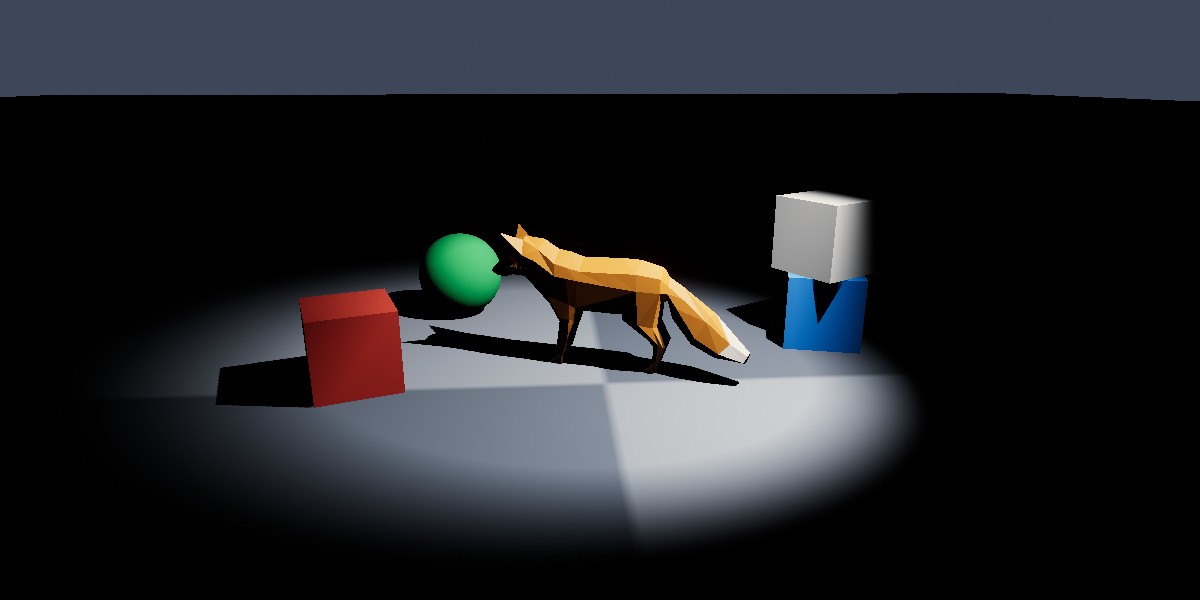
A spot light shining down on a fox and several objects from above and to the side, in an otherwise dark scene, with shadows enabled.
Spot Lights#
using var light = factory.LightBuilder.CreateSpotLight( // (1)!
    position: new Location(0f, 3f, 0f),
    coneDirection: Direction.Down,
    coneAngle: 40f,
    intenseBeamAngle: 30f
);
scene.Add(light); // (2)!

light.ConeDirection = new Direction(0f, -1f, 1f); // (3)!
-
Creates a spot light 3 units above the origin, pointing down, with a 40° cone that's at full strength for the central 30°.
-
Adds the light to a scene. A light only illuminates the scenes it has been added to.
-
Points the light down and forward.
A SpotLight emits light from a position in a cone, like a torch, a desk lamp, or a theatre spotlight. Objects outside the cone receive no light from it.
Creating Spot Lights#
Spot lights are created with factory.LightBuilder.CreateSpotLight(), which accepts the following optional parameters (or alternatively a SpotLightCreationConfig with equivalent properties):
-
position -
Where the light is. Defaults to the origin.
-
coneDirection -
Which way the light points. Defaults to
Direction.Down. -
coneAngle,intenseBeamAngle -
The shape of the cone. Default to 70° and 15° respectively. See Cone.
-
color,brightnessPreset,brightness,castsShadows -
The light's colour (default white), brightness (default
1f; a handheld flashlight, or given as a preset such asSpotLightBrightnessPreset.CarHeadlight), and whether it casts shadows (defaultfalse). If bothbrightnessPresetandbrightnessare specified,brightnessis used. See Brightness. -
maxDistance -
How far down its cone the light reaches, in metres. Defaults to
15f. See Range. -
highQuality -
Whether the light dims as its cone widens. Defaults to
false. Can only be set at creation. See High Quality Cones. -
name -
An optional name for the light.
Cone#
A spot light's cone is described by three properties:
-
ConeDirection -
Which way the light points; i.e. the direction its cone of light travels along. A spot light's
RotateBy()methods rotate this direction. -
ConeAngle -
How wide the cone is. Nothing outside the cone receives any light. Clamped to between
SpotLight.MinConeAngle(1°) andSpotLight.MaxConeAngle(180°). -
IntenseBeamAngle -
How wide the fully-lit centre of the cone is. Between this angle and
ConeAngle, the light fades out to nothing.
Both angles are the cone's full width, not the angle from its centre to its edge; so a ConeAngle of 90° describes a cone spreading 45° in every direction from ConeDirection.
The relationship between the two angles controls how hard or soft the edge of the pool of light looks. Setting IntenseBeamAngle close to ConeAngle gives a sharply-defined circle of light, like a theatre spotlight; setting it much smaller gives a soft glow that fades gradually outward, like a desk lamp.
The intense beam can't be wider than the cone, so the two angles push each other (setting IntenseBeamAngle wider than ConeAngle widens the cone to match, and setting ConeAngle narrower than IntenseBeamAngle narrows the beam to match).
Range#
The MaxIlluminationDistance is the distance beyond which the SpotLight contributes no light at all. Setting it too small for the light's brightness produces a visible edge where the light abruptly cuts off.
Brightness#
Every light's Brightness is a relative value, where 1f is the default strength for that kind of light. This makes it easy to adjust lights of different kinds in the same terms ("half as bright", "twice as bright").
light.Brightness = 2f;
light.ScaleBrightnessBy(1.5f); // (1)!
light.AdjustBrightnessBy(-1f); // (2)!
-
Multiplies the brightness by 1.5 (so
2fbecomes3f). -
Adds -1 to the brightness (so
3fbecomes2f). The result never goes below0f.
The default values for brightness are set up to co-ordinate with the default value of the camera's exposure. For more information, see Exposure & Brightness.
High Quality Cones#
In the real world, a spot light concentrates a fixed amount of light in to its cone. Widening the cone spreads the same light over a larger area, so everything it lights becomes dimmer; narrowing the cone makes it brighter.
This is physically correct, but it can make spot lights awkward to work with, because adjusting the cone also changes how bright the light looks. By default, TinyFFR's spot lights therefore don't behave this way: a spot light's brightness is the same whatever its cone angle.
To create a spot light that does behave physically correctly (dimming as its cone widens), pass highQuality: true to CreateSpotLight() (or set IsHighQuality in a SpotLightCreationConfig). This can only be chosen when the light is created.
A high-quality spot light concentrates its whole output in to its cone, so the same brightness looks brighter, increasingly so the narrower its cone is; reduce its brightness to compensate. (The brightness presets are calibrated for standard spot lights.)
Colour#
A light's Color tints the light itself, not the objects it falls on. A red light leaves a white surface looking red; but a surface that reflects no red at all stays dark no matter how bright the light is.
StandardColor has a number of presets for common real-world light sources (StandardColor.LightingCandle, LightingIncandescentBulb, LightingSunRiseSet, LightingSunMidday, LightingAmbientDaylight, LightingAmbientOvercast, and LightingAmbientShaded).
A light's colour can also be adjusted in terms of hue, saturation, and lightness via its ColorHue, ColorSaturation, and ColorLightness properties (and the corresponding AdjustColor[...]By() methods).
Shadows#
Setting a light's CastsShadows to true makes the objects it lights cast shadows from it:
Shadows are calculated separately for each light that casts them, and are one of the more expensive things a scene can ask for. It's therefore common to enable shadows only for the one or two lights that most define a scene's look, and leave the rest without shadows.
The quality of shadows (and whether they're rendered at all) is set per renderer, via the ShadowQuality and ShadowsEnabled properties of its RenderQualityConfig; see Render Quality.