Equation Plotter
-
Overview View Code on Github
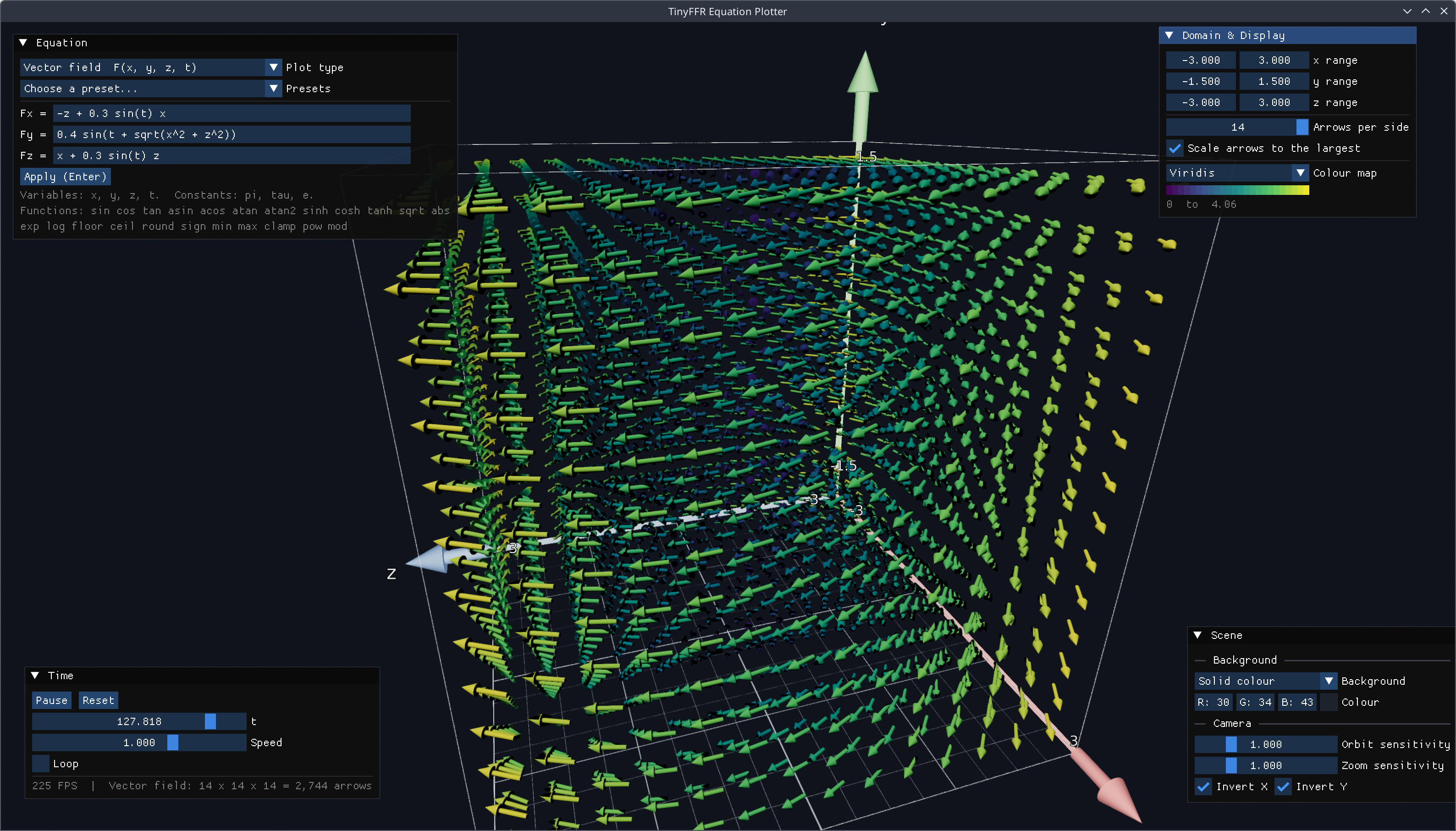
This uses TinyFFR to plot graphs and vector fields in 3D in realtime.
Demonstrated Features#
- Dynamic Meshes & Mutable Grids | Writable Textures: Animating a surface on a mutable grid, coloured via a writable texture;
- Creating Meshes | Scene Objects: Drawing a vector field with thousands of arrow model instances;
- Dynamic Meshes & Mutable Grids: Generating a parametric surface in a dynamic vertex buffer;
- Dear ImGui Integration: Drawing the application's controls with Dear ImGui, on top of a 3D scene;
- Orbital Camera Controller: Orbiting the camera around the plot.
Running It#
Download (or clone) the whole Examples/EquationPlotter folder, then open a terminal in that folder and run dotnet run -c Release.
Choose a plot type and a preset from the Equation window to get started, then try editing the equations.
| Action | Control |
|---|---|
| Orbit the camera | Hold left or right mouse button + move mouse |
| Zoom | Mouse wheel |
| Apply an edited equation | Enter (or the Apply button) |
| Exit | Escape |
TypeLoadWorkaround.cs (Crash with Exit Code 139)
On Linux, a bug in the .NET 9 and .NET 10 runtimes can make this example crash immediately on startup, before any of its code runs. There's no exception or error message; the process simply exits with a "Segmentation fault" (exit code 139).
The bug (dotnet/runtime#130661) is in how the runtime loads certain struct types, and it's triggered when some of TinyFFR's types are used before the types they contain have been loaded. It has been fixed in .NET 11.
Until then, the example works around it with TypeLoadWorkaround.cs, which makes the runtime load TinyFFR's types in a safe order before the program starts (it runs automatically via a module initializer).
Windows and MacOS are not affected.
Plot Types#
| Plot type | Equations | Drawn as |
|---|---|---|
| Surface | y = f(x, z, t) |
A mutable grid whose heights are rewritten every frame |
| Vector field | F(x, y, z, t) = (Fx, Fy, Fz) |
A lattice of arrows (one model instance each), pointing along the field and coloured by its strength |
| Parametric surface | (x, y, z) = f(u, v, t) |
A mesh generated in a dynamic vertex buffer every frame |
| Scalar field slice | w = f(x, y, z, t) |
A flat grid that slices through the field, coloured by its value |
In every case, t is time: the plot is re-evaluated every frame as t advances, so equations that use t animate.
Architecture#
flowchart TB
    subgraph frame ["Every frame"]
        direction TB
        iterate["Iterate the application loop"]:::env
        begin["Begin the ImGui frame"]:::render
        panel["Control panel:<br/>equations, domain & time controls"]:::step
        camera["Orbit the camera<br/>(unless ImGui is using the mouse)"]:::world
        clock["Advance the plot clock"]:::step
        plot["Update the active plot:<br/>evaluate the equations at every point"]:::asset
        finish["End the ImGui frame"]:::render
        render["Render the plot, then ImGui on top"]:::render
        iterate --> begin --> panel --> camera --> clock --> plot --> finish --> render --> iterate
    end
    parser["Expression parser:<br/>compile typed equations"]:::step
    panel -- "Apply" --> parser --> plot

    classDef env fill:#219ebc,fill-opacity:0.3,stroke:#219ebc,stroke-width:2px
    classDef asset fill:#f4a300,fill-opacity:0.3,stroke:#e09400,stroke-width:2px
    classDef world fill:#2a9d5c,fill-opacity:0.3,stroke:#2a9d5c,stroke-width:2px
    classDef render fill:#8e5cc4,fill-opacity:0.3,stroke:#8e5cc4,stroke-width:2px
classDef step fill:#8a939b,fill-opacity:0.2,stroke:#8a939b,stroke-width:2px| File | What it does |
|---|---|
Program.cs |
Creates the window, scene, camera, renderers and compositor, and runs the application loop. |
ExpressionTokenizer.cs / ExpressionParser.cs / CompiledExpression.cs |
Turn a typed equation in to a compact list of instructions, and evaluate it. |
PlotController.cs |
Owns the active plot and the compiled equations; switches between plot types. |
PlotDomain.cs |
The ranges being plotted, the resolution of each plot, and other display settings. |
SurfacePlot.cs / VectorFieldPlot.cs / ParametricSurfacePlot.cs / ScalarSlicePlot.cs |
One class per plot type. |
GridTexture.cs |
A writable texture used to colour a grid one texel per vertex. |
ColorMap.cs |
The colour maps that turn a value in to a colour. |
AxesGizmo.cs |
The box, axes, labels, and floor grid around the plot. |
PlotClock.cs |
The time t: playing, pausing, speed, and looping. |
SceneSettings.cs |
The background, the camera's sensitivity and inversion settings, the label settings, and which parts of the plot box (box, axes, and grids) are shown. |
ControlPanel.cs |
Every ImGui window. |
Presets.cs |
The built-in example equations. |
All four plot types draw in to the same 4 × 4 × 4 metre box around the origin; the ranges set in the Domain & Display window decide which part of each equation that box shows (see PlotDomain.cs). Because the box never changes size, the camera never needs to be re-framed, whatever ranges are chosen.
Typed equations are turned in to something that can be evaluated quickly by the example's own small expression parser (ExpressionParser.cs). It isn't specific to TinyFFR, so it isn't covered on this page; but evaluating a parsed equation never allocates any memory, so the plots can re-evaluate their equations at tens of thousands of points every frame without generating garbage.
Surfaces on a Mutable Grid#
A surface is a mutable grid: a flat sheet of vertices whose heights can be changed at any time. Every frame, the surface plot evaluates its equation at every vertex, and writes the result as that vertex's height. A 256x256 surface has 65,536 vertices, so the work is split across TinyFFR's worker threads:
public unsafe void Update(float time, CompiledExpression[] expressions) {
    _currentExpression = expressions[0];
    _currentTime = time;
    _grid.WriteVerticesParallelized(&WriteVertexBlock, this, permitLateralDisplacement: false, recalculateNormals: true);
    _colors.Upload();
}

static void WriteVertexBlock(Span<MutableGridVertex> block, XYPair<int> offset, XYPair<int> dimensions, SurfacePlot plot) {
    var expression = plot._currentExpression!;
    var domain = plot._domain;
    Span<float> variables = stackalloc float[3];
    variables[2] = plot._currentTime;
    var firstIndex = offset.Y * dimensions.X;
    for (var i = 0; i < block.Length; ++i) {
        var index = firstIndex + i;
        var normalized = plot._normalizedCoords[index];
        variables[0] = domain.FromNormalizedX(normalized.X);
        variables[1] = domain.FromNormalizedZ(normalized.Y);
        var value = expression.Evaluate(variables);
        var height = Single.IsFinite(value) ? Math.Clamp(domain.ToWorldY(value), -PlotDomain.WorldHalfSize, PlotDomain.WorldHalfSize) : 0f;
        block[i] = new MutableGridVertex(height);
        plot._colors.Set(new XYPair<int>(index % dimensions.X, index / dimensions.X), ColorMap.SampleTexel(domain.ColorMap, height / (PlotDomain.WorldHalfSize * 2f) + 0.5f));
    }
}
WriteVerticesParallelized()splits the grid in to bands of rows, and callsWriteVertexBlock()for each band on TinyFFR's worker threads (and the calling thread) at the same time. The plot itself is passed as the context, so the callback can read the current equation and time without allocating a closure.- Callbacks must never call TinyFFR (see Parallelization), so each vertex's position on the grid (from -0.5 to 0.5 in each direction, as returned by
GetVertexCoordinateNormalized()) is copied in to_normalizedCoordsonce, when the plot is created. The domain turns these in to thexandzvalues for the equation. - Each band evaluates the equation with its own
variables(allocated on its own thread's stack), so the bands never interfere with each other.CompiledExpression.Evaluate()only reads the parsed equation, so it's safe to call from several threads at once. recalculateNormals: truemakes the grid recalculate which way each part of the surface faces, so that it's lit according to its shape. TinyFFR does this in parallel too.- The grid's bounding box is set from
maxHeightDisplacementwhen it's created, so heights are clamped to the plot box; anything outside it would otherwise be culled.
Mutable grid vertices don't have a colour of their own, so each surface is coloured by a writable texture with one texel for every vertex. The texture is stretched over the whole grid, so each texel lands on its vertex:
public void Set(XYPair<int> gridCoordinate, TexelRgb24 texel) {
    _texels[(Dimensions.Y - 1 - gridCoordinate.Y) * Dimensions.X + gridCoordinate.X] = texel;
}
Texture data is written from the top row down, whereas the grid's coordinates count up from the bottom, so the row is flipped. Every vertex has its own texel, so the bands can all write their colours at the same time.
Vector Fields with Arrow Instances#
A vector field is drawn as a lattice of arrows: one model instance per lattice point, all sharing a single arrow mesh (created with MeshBuilder.CreateArrow(); see Creating Meshes). Every frame, once the field has been evaluated at each arrow's position, each arrow is rotated to point along the field, and stretched according to the field's strength:
if (lengthFraction <= 0.001f || vector.Direction == Direction.None) {
    arrow.SetScaling(Vect.Zero);
    continue;
}

var length = _cellSize * ArrowCellFraction * lengthFraction;
var thickness = _cellSize * ArrowCellFraction;
arrow.SetRotation(Rotation.FromStartAndEndDirection(Direction.Forward, vector.Direction));
arrow.SetScaling(new Vect(thickness, thickness, length));

var paletteIndex = largestMagnitude > 0f ? Math.Min((int) (magnitude / largestMagnitude * PaletteSize), PaletteSize - 1) : 0;
if (paletteIndex == _paletteIndices[i]) continue;
_paletteIndices[i] = paletteIndex;
arrow.SetMaterial(_paletteMaterials[paletteIndex]);
- The arrow mesh points along
Direction.Forward, soRotation.FromStartAndEndDirection()turns it to face along the field, and the scaling stretches it along its length (the Z axis) only, so that thin arrows stay thin. - An arrow with nothing to show (where the field is zero) is hidden by scaling it to zero, rather than being removed from the scene and added back later.
- Arrows are coloured by choosing one of 16 shared materials (one for each band of strength), so changing an arrow's colour is just
SetMaterial(); and it's only called when an arrow actually changes band. - In testing, 2,744 arrows (14 per side) still rendered in around 4.3 milliseconds per frame.
Parametric Surfaces with a Dynamic Vertex Buffer#
A parametric surface can fold over itself, so it can't be a mutable grid. Instead, it's generated in a dynamic vertex buffer. The triangles never change, so they're written once, when the plot is created; twice over, the second time facing the other way, so that both sides of the surface are drawn. Each block of triangles works out which quad (and which of its four triangles) each of its indices is from that index alone, so that the blocks can be written in parallel:
unsafe void WriteTriangles() {
    _buffer.WriteTrianglesParallelized(&WriteTriangleBlock, _resolution, recalculateBoundingBoxOnLeaseDispose: false, overwriteChildMeshBoundingBoxes: false);
}

static void WriteTriangleBlock(Span<VertexTriangle> block, int startIndex, int resolution) {
    var backOffset = resolution * resolution;
    var quadsPerRow = resolution - 1;
    for (var i = 0; i < block.Length; ++i) {
        var triangleIndex = startIndex + i;
        var quad = triangleIndex >> 2;
        var u = quad / quadsPerRow;
        var v = quad % quadsPerRow;
        var a = u * resolution + v;
        var b = (u + 1) * resolution + v;
        var c = u * resolution + v + 1;
        var d = (u + 1) * resolution + v + 1;
        block[i] = (triangleIndex & 3) switch {
            0 => new VertexTriangle(a, b, c),
            1 => new VertexTriangle(b, d, c),
            2 => new VertexTriangle(backOffset + a, backOffset + c, backOffset + b),
            _ => new VertexTriangle(backOffset + b, backOffset + c, backOffset + d)
        };
    }
}
Every frame, the equations are evaluated at each (u, v) (giving each vertex's position), and then every vertex is rewritten, with a normal worked out from its neighbours:
public unsafe void Update(float time, CompiledExpression[] expressions) {
    UpdateGradient();
    _currentExpressions = expressions;
    _currentTime = time;
    ParallelizationProvider.Execute(_allocator.ParallelizingFacade, _resolution, &EvaluatePositionRows, this);

    var max = Vector3.Max(Vector3.Zero, Vector3.Zero);
    var min = max;
    for (var u = 0; u < _resolution; ++u) {
        min = Vector3.Min(min, _rowMinimums[u]);
        max = Vector3.Max(max, _rowMaximums[u]);
    }

    _buffer.WriteVerticesParallelized(&WriteVertexBlock, this, recalculateBoundingBoxOnLeaseDispose: false, overwriteChildMeshBoundingBoxes: true);
    _buffer.SetBoundingBox(PositionedCuboid.FromHalfDimensions((max.X - min.X) * 0.5f, (max.Y - min.Y) * 0.5f, (max.Z - min.Z) * 0.5f, Location.FromVector3((min + max) * 0.5f)), overwriteChildMeshBoundingBoxes: true);
}
The positions are evaluated a row of u at a time, with ParallelizationProvider.Execute():
static void EvaluatePositionRows(int firstU, int count, ParametricSurfacePlot plot) {
    var expressions = plot._currentExpressions!;
    var domain = plot._domain;
    var resolution = plot._resolution;
    Span<float> variables = stackalloc float[3];
    variables[2] = plot._currentTime;
    for (var u = firstU; u < firstU + count; ++u) {
        variables[0] = domain.FromNormalizedU(u / (resolution - 1f) - 0.5f);
        var min = new Vector3(Single.PositiveInfinity);
        var max = new Vector3(Single.NegativeInfinity);
        for (var v = 0; v < resolution; ++v) {
            variables[1] = domain.FromNormalizedV(v / (resolution - 1f) - 0.5f);
            var position = new Vector3(
                domain.ToWorldX(SafeEvaluate(expressions[0], variables)),
                domain.ToWorldY(SafeEvaluate(expressions[1], variables)),
                domain.ToWorldZ(SafeEvaluate(expressions[2], variables))
            );
            plot._positions[u * resolution + v] = position;
            min = Vector3.Min(min, position);
            max = Vector3.Max(max, position);
        }
        plot._rowMinimums[u] = min;
        plot._rowMaximums[u] = max;
    }
}
Once every position is known, the vertices are written in parallel (both the front and the back of the surface):
static void WriteVertexBlock(Span<MeshVertex> block, int startIndex, ParametricSurfacePlot plot) {
    var positions = plot._positions;
    var resolution = plot._resolution;
    var backOffset = resolution * resolution;
    for (var i = 0; i < block.Length; ++i) {
        var bufferIndex = startIndex + i;
        var isBack = bufferIndex >= backOffset;
        var index = isBack ? bufferIndex - backOffset : bufferIndex;
        var u = index / resolution;
        var v = index % resolution;
        var position = positions[index];
        var alongU = Vector3.Normalize(positions[Math.Min(u + 1, resolution - 1) * resolution + v] - positions[Math.Max(u - 1, 0) * resolution + v]);
        var alongV = Vector3.Normalize(positions[u * resolution + Math.Min(v + 1, resolution - 1)] - positions[u * resolution + Math.Max(v - 1, 0)]);
        var normal = Vector3.Normalize(Vector3.Cross(alongU, alongV));
        if (!Single.IsFinite(normal.X) || !Single.IsFinite(alongU.X)) {
            normal = Vector3.UnitY;
            alongU = Vector3.UnitX;
        }
        var bitangent = Vector3.Cross(normal, alongU);
        if (isBack) {
            bitangent = -bitangent;
            normal = -normal;
        }
        var colorCoord = new XYPair<float>(0.5f, Math.Clamp(position.Y / (PlotDomain.WorldHalfSize * 2f) + 0.5f, 0f, 1f));
        block[i] = new MeshVertex(Location.FromVector3(position), colorCoord, MeshVertex.CalculateTangentRotation(Direction.FromVector3(alongU), Direction.FromVector3(bitangent), Direction.FromVector3(normal)));
    }
}
- The directions towards the vertex's neighbours along
uand alongvgive two directions along the surface; their cross product is the surface's normal.MeshVertex.CalculateTangentRotation()turns the three directions in to the vertex's tangent rotation. - The second half of the buffer is the back of the surface. Each vertex works out for itself whether it's a front or back vertex, so that every block can be written independently; back vertices use the same position with the bitangent and normal reversed.
- Each vertex's texture coordinate is set from its height, so it samples a different part of a gradient texture (a thin strip, made from the colour map); this is how the surface is coloured by height.
- The bounding box is set from the smallest box that contains every vertex, so the surface is never culled incorrectly as it moves. Each row records its own smallest and largest position, and the rows are combined on the calling thread afterwards; this way no two threads ever write to the same value.
Scalar Field Slices#
A scalar field gives a single value at every point in 3D space, which is hard to show all at once. Instead, a flat grid slices through the field, coloured by the field's value on the slice. The slice can face any of the three axes, and its position can be moved through the field:
var (xDirection, yDirection, upDirection) = _axis switch {
    SliceAxis.FacingZ => (Direction.Left, Direction.Up, Direction.Backward),
    SliceAxis.FacingX => (Direction.Forward, Direction.Up, Direction.Left),
    _ => (Direction.Left, Direction.Forward, Direction.Up)
};
The slice's colours are what matter, so it uses a lighting-ignoring material: the colours look the same whichever way the slice faces, with no shading. The colour range adapts to the values on the slice each frame, and is shown underneath the colour map in the Domain & Display window.
Axes & Labels#
The box, axes, range labels, and floor grid are all scene primitives. They're only rebuilt when the plot type or the ranges change (and the labels alone are rebuilt when their settings in the Scene window change):
void AddAxisLabels(Vect length, string name, float min, float max, in PrimitivePaintbrush brush, float nameSize, float rangeSize) {
    var end = Corner + length;
    var outward = (Corner + length * 0.5f).AsVect().WithLength(0.3f);
    _labels.Add(_labelScene.AddPrimitiveString(end + length.WithLength(1.1f) + outward * 2f, name, brush, nameSize, constantScreenSize: true));
    _labels.Add(_labelScene.AddPrimitiveString(Corner + length * 0.05f + outward, Format(min), brush, rangeSize, constantScreenSize: true));
    _labels.Add(_labelScene.AddPrimitiveString(end - length * 0.05f + outward, Format(max), brush, rangeSize, constantScreenSize: true));
}
The Scene window can also hide the box and the axes, and add a grid to the bottom face of each axis (by default, only the floor: the bottom of the y axis). Each axis can have several evenly spaced grids, starting from its bottom face; for example, two grids on the y axis puts a second grid halfway up the box:
void AddGrids(int axisIndex, Vect length) {
    if (!_settings.GridEnabled[axisIndex]) return;
    var count = Math.Max(_settings.GridCount[axisIndex], 1);
    for (var i = 0; i < count; ++i) {
        var centre = Location.Origin + length * (i / (float) count - 0.5f);
        _primitives.Add(_scene.AddPrimitiveGrid(centre, GridBrush, gridNormal: length.Direction, gridSize: Half * 2f, majorGridLineSpacing: 1f, minorGridLineSpacing: 0.25f));
    }
}
Text primitives always face the camera and stay the same size on screen (constantScreenSize: true), so the labels stay readable as the camera orbits. The paintbrush's primary colour is the text colour and its secondary colour is the outline; both, and the size, can be changed (or the labels hidden altogether) in the Scene window.
The labels are added to a second scene (labelScene), which has no backdrop and is rendered with the same camera, over the plot. Because it's a separate scene, nothing in the plot scene (not the surface, nor the axis arrows) can ever hide a label; they're always on top. This is the always-on-top technique described on the compositing page.
ImGui Controls#
The controls are drawn with Dear ImGui, on top of the 3D scene. The ImGui scene has its own renderer, which is added to a compositor after the 3D scene's renderer, so it's drawn on top:
using var sceneRenderer = factory.RendererBuilder.CreateRenderer(scene, camera, window);
using var labelRenderer = factory.RendererBuilder.CreateRenderer(labelScene, camera, window);
using var imguiScene = factory.SceneBuilder.CreateImGuiScene(factory);
using var imguiRenderer = factory.RendererBuilder.CreateRenderer(imguiScene, window);
using var compositor = factory.RendererBuilder.CreateCompositor(window);
sceneRenderer.SetQuality(new RenderQualityConfig(BuiltInQualityConfiguration.Medium) { AntiAliasingMode = AntiAliasingMode.None });
labelRenderer.SetQuality(BuiltInQualityConfiguration.DebugAndDiagnostic);
compositor.Add(sceneRenderer, RenderCompositionType.Standard);
compositor.Add(labelRenderer, RenderCompositionType.RetainPreviousScenes);
compositor.Add(imguiRenderer, RenderCompositionType.RetainPreviousScenes);
Every frame, the UI is built between BeginFrame() and EndFrame(), and the compositor then renders both scenes:
while (!loop.Input.UserQuitRequested) {
    var deltaTime = loop.IterateOnce().AsDeltaTime();
    var input = loop.Input.KeyboardAndMouse;

    imguiScene.BeginFrame(deltaTime, loop, window, imguiRenderer);
    panel.Draw(loop);

    var io = ImGui.GetIO();
    if (!io.WantCaptureKeyboard && input.KeyWasPressedThisIteration(KeyboardOrMouseKey.Escape)) break;
    if (!io.WantCaptureMouse) {
        if (input.KeyIsCurrentlyDown(KeyboardOrMouseKey.MouseLeft) || input.KeyIsCurrentlyDown(KeyboardOrMouseKey.MouseRight)) {
            cameraController.AdjustAngleViaMouseCursor(input, Angle.FromDegrees(0.25f * settings.OrbitSensitivity), settings.InvertHorizontal);
            cameraController.AdjustHeightViaMouseCursor(input, 0.02f * settings.OrbitSensitivity, settings.InvertVertical);
        }
        cameraController.AdjustDistanceViaMouseWheel(input, 0.6f * settings.ZoomSensitivity);
    }
    cameraController.Progress(deltaTime);

    clock.Advance(deltaTime);
    plots.Update(clock.Time);

    imguiScene.EndFrame();
    compositor.RenderAll();
}
ImGui doesn't stop the rest of the application from seeing the mouse and keyboard; so the camera only responds to the mouse when WantCaptureMouse is false (i.e. when the mouse isn't over an ImGui window), and Escape only exits when ImGui isn't using the keyboard (so pressing Escape while typing an equation doesn't close the application).
Each equation is typed in to an ImGui text box (ImGui.InputText()). Text boxes need the characters that the user's keystrokes produce, rather than just which keys were pressed, so they rely on TinyFFR's text transcription (see Keyboard / Mouse Input). BeginFrame() takes care of this automatically: it turns transcription on whenever an ImGui text box has focus, and off again afterwards (see Dear ImGui Integration).
The windows are placed relative to the size of ImGui's font (which TinyFFR scales to suit the display), so they're laid out the same way on high-DPI displays.
Orbital Camera#
The camera is controlled by an orbital camera controller, which keeps it circling the centre of the plot box. The controller's default limits suit small objects, so they're widened to suit the plot. A negative MinHeight lets the camera go below the plot as well as above it:
using var cameraController = camera.CreateController<OrbitalCameraController>();
cameraController.SetConstraints(Location.Origin, Direction.Up, Direction.Forward, angleRange: null, minHeight: -10f, maxHeight: 10f, minDistance: 3f, maxDistance: 25f);
cameraController.Angle = Angle.FromDegrees(-35f);
cameraController.Height = 3.5f;
cameraController.Distance = 8f;
The Scene window (in the bottom-right corner) sets how sensitive the camera is to the mouse, and whether either axis is inverted. These are passed straight to the controller's AdjustAngleViaMouseCursor(), AdjustHeightViaMouseCursor(), and AdjustDistanceViaMouseWheel() methods, which each take an amount per pixel (or per mouse wheel step) and an invertMouseControl flag (see the main loop above). The same window also chooses the background: a solid colour, or one of TinyFFR's built-in backdrops:
public void ApplyBackground(Scene scene) {
    switch (Background) {
        case BackgroundStyle.Clouds:
            scene.SetBackdrop(BuiltInSceneBackdrop.Clouds, SceneBackdropBrightnessPreset.InsideBrightLighting);
            break;
        case BackgroundStyle.Starfield:
            scene.SetBackdrop(BuiltInSceneBackdrop.Starfield, backdropIntensity: 1f);
            break;
        default:
            scene.SetBackdrop(ColorVect.SrgbToLinear(new ColorVect(BackgroundColor.X, BackgroundColor.Y, BackgroundColor.Z)), indirectLightingIntensity: 0.6f);
            break;
    }
}
The colour picker works in sRGB (as an image editor would), but backdrop colours are linear, so the colour is converted with ColorVect.SrgbToLinear(). The starfield is shown as it was authored (at an intensity of 1f) rather than at a brightness preset: it's almost entirely black, so brightening it until it lit the scene like a room would turn the whole sky white.