Capturing Render Output
-
 In a nutshell...
- A
RenderOutputBufferis an off-screen render target. Renderers and compositors can draw in to it instead of a window. Render Output Buffers - The pixels of each frame rendered to a buffer can be read back on the CPU. It's also possible to just capture screenshots from any renderer. Reading Frames, Screenshots
- A buffer can also be used directly as a texture, e.g. for an in-world screen showing a second camera's view. Using a Buffer as a Texture
- A
Render Output Buffers#
using var buffer = factory.RendererBuilder.CreateRenderOutputBuffer((1920, 1080)); // (1)!
using var renderer = factory.RendererBuilder.CreateRenderer(scene, camera, buffer); // (2)!

buffer.ReadNextFrame((dimensions, texels) => { // (3)!
    ImageUtils.SaveBitmap("frame.bmp", dimensions, texels); // (4)!
});
renderer.RenderAndWaitForGpu(); // (5)!
-
Creates a 1920x1080 off-screen buffer.
-
Creates a renderer that draws
scene(as seen bycamera) in to the buffer, rather than in to a window. -
Asks to be handed the pixels of the next frame rendered in to the buffer.
-
Saves those pixels to a bitmap file (see Saving Bitmaps).
-
Renders the frame, and waits until it's finished (and the pixels have been handed to the function above).
A render output buffer (RenderOutputBuffer) is an image that TinyFFR can render in to instead of a window. Renderers, compositors, and everything else that renders to a window can render to a buffer in exactly the same way. The result can then be read back on the CPU (e.g. to save it to a file, send it over a network, or show it in another UI framework), or used directly as a texture.
-
factory.RendererBuilder.CreateRenderOutputBuffer(textureDimensions) -
Creates a buffer of the given size in pixels. Each dimension must be between
1and32,768; if omitted, the size defaults to 2560x1440. ARenderOutputBufferCreationConfigcan be passed instead to also give the buffer a name or choose its row order. -
TextureDimensions -
The buffer's size in pixels. A buffer can't be resized; create a new buffer if you need a different size.
Buffers don't need a window, a display, or even a desktop: In headless mode, buffers are the only way to render. Rendering to a buffer is never paced by a display's refresh rate (vsync only applies to windows).
The WPF, Avalonia, and WinForms integrations render in to buffers behind the scenes, and copy each frame in to their controls for you.
Reading Frames#
-
ReadNextFrame(handler, presentFrameTopToBottom) -
Hands the pixels of the next frame rendered in to the buffer to
handler, once. The handler receives the frame's dimensions and aReadOnlySpan<TexelRgba32>of its pixels. -
StartReadingFrames(handler, presentFramesTopToBottom) -
Hands the pixels of every subsequent frame rendered in to the buffer to
handler, untilStopReadingFrames()is called. -
StopReadingFrames(cancelQueuedFrames) -
Stops handing frames to the handler. Frames that are already being rendered are still handed over unless
cancelQueuedFramesistrue.
All three methods also accept a function pointer (delegate*) in place of a delegate, which avoids allocating a delegate object (see the GC note below). A buffer has only one handler at a time: Calling ReadNextFrame() or StartReadingFrames() replaces any handler set previously.
buffer.StartReadingFrames((dimensions, texels) => { // (1)!
    var topLeftPixel = texels[0]; // (2)!
    var bottomRightPixel = texels[dimensions.Area - 1];
}, presentFramesTopToBottom: true);

// Per-frame:
renderer.Render(); // (3)!
-
Starts handing every frame rendered in to
bufferto this function. -
The pixels are laid out row by row. With
presentFramesTopToBottom: truethe first row is the top of the image, so the first pixel is the top-left one. -
Each render eventually results in one call to the handler.
The span is only valid while the handler runs. Copy anything you want to keep (e.g. with texels.CopyTo(...)) before returning.
When Handlers Are Called#
Reading a frame back requires the GPU to have finished rendering it, so handlers aren't called during the Render() that produced the frame. Instead each handler call happens on the thread that's rendering, during a later call to Render() (or WaitForGpu()), once that frame has finished. With the default GPU synchronization settings, a frame's pixels typically arrive a few frames after it was rendered.
RenderAndWaitForGpu()(orWaitForGpu()) delivers every pending frame before returning; that's the simplest way to render one frame and get its pixels straight away.StopReadingFrames(cancelQueuedFrames: false)still delivers the frames that were already being rendered (usually one to five), so the handler may be called a few more times after you stop.
Row Order#
-
presentFrameTopToBottom -
Whether the first row of pixels handed to the handler is the top of the image (
true), or the bottom (false, the default).Bottom-to-top matches TinyFFR's texture convention, and is what
ImageUtils.SaveBitmap()expects by default. Top-to-bottom matches what most UI frameworks and image libraries expect.
Choosing a Row Order#
Frames can always be read in either order, but a buffer stores its rows in one particular order internally. Reading in that order hands the pixels over as they are; reading in the other order requires TinyFFR to reverse every row first, which costs CPU time each frame.
-
RenderOutputBufferCreationConfig.OptimizeForTopToBottomReadback -
If
true, the buffer stores its rows top-to-bottom, so that reading frames withpresentFrameTopToBottom: trueis free. Defaults tofalse(bottom-to-top reading is free).
using var buffer = factory.RendererBuilder.CreateRenderOutputBuffer(new RenderOutputBufferCreationConfig {
    TextureDimensions = (1920, 1080),
    OptimizeForTopToBottomReadback = true // (1)!
});
buffer.StartReadingFrames(CopyFrameToMyUiBitmap, presentFramesTopToBottom: true); // (2)!
-
This buffer will mostly be read top-to-bottom, so store it that way.
-
CopyFrameToMyUiBitmapis a hypothetical method of your own. Frames are handed to it without any extra copying.
Set this to true if you'll mostly read the buffer top-to-bottom (the UI framework integrations do this). Two things to be aware of:
- A dynamic texture created from such a buffer appears upside-down when used in a material or on a canvas (though not in an ImGui image). Leave this setting
falsefor buffers you'll use as textures.
TopToBottom Optimisation Quirk on OpenGL
On the OpenGL rendering backend, top-to-bottom reads from such a buffer still require the rows to be reversed (and bottom-to-top reads require it for buffers without this setting).
Every other backend, including the default backend on every platform, works as described above.
Avoiding Allocations#
A lambda that captures variables (like the ones above) allocates a delegate object each time it's created, which can contribute to garbage-collection stutter if done every frame. To read frames without allocating, register a handler once with StartReadingFrames() rather than calling ReadNextFrame() every frame, or pass a function pointer to a static method:
static void HandleFrame(XYPair<int> dimensions, ReadOnlySpan<TexelRgba32> texels) {
    // Process the frame here
}

unsafe {
    buffer.ReadNextFrame(&HandleFrame); // (1)!
}
- Passes a pointer to the static
HandleFramemethod. No delegate object is allocated.
Using a Buffer as a Texture#
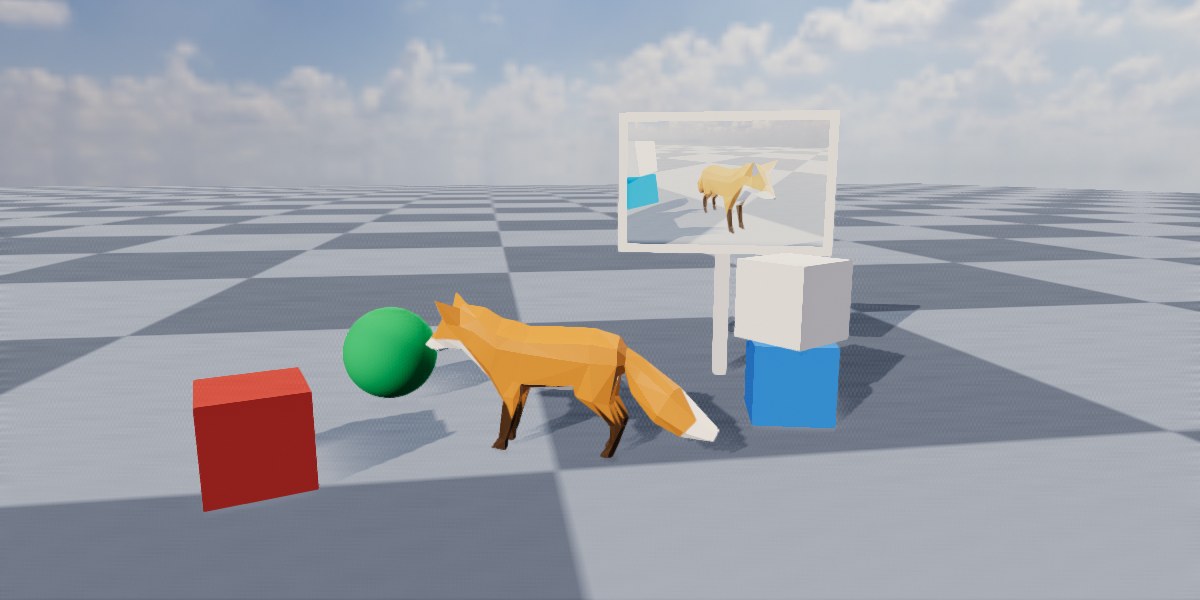
A second camera renders in to a buffer, whose dynamic texture is shown on a quad in the scene (as a "security monitor").
using var monitorBuffer = factory.RendererBuilder.CreateRenderOutputBuffer((640, 400));
using var monitorRenderer = factory.RendererBuilder.CreateRenderer(scene, monitorCamera, monitorBuffer); // (1)!
using var monitorTexture = monitorBuffer.CreateDynamicTexture(); // (2)!
using var monitorMaterial = factory.MaterialBuilder.CreateLightingIgnoringMaterial(monitorTexture); // (3)!
using var monitorScreen = factory.ObjectBuilder.CreateQuadInstance(quadMesh, monitorMaterial, position: monitorPosition, size: (1.28f, 0.8f)); // (4)!
scene.Add(monitorScreen);

// Per-frame:
monitorRenderer.Render(); // (5)!
renderer.Render();
-
A second renderer draws the scene from
monitorCamerain tomonitorBuffer. -
Creates a texture that always shows the latest frame rendered in to
monitorBuffer. -
Uses the texture in a lighting-ignoring material, so the "screen" glows regardless of the scene's lighting.
-
Shows the material on a quad in the scene.
-
Renders the monitor's view first, then the main view (which shows the monitor's latest frame).
-
CreateDynamicTexture() -
Returns a
Textureshowing the buffer's contents. It doesn't need to be recreated or refreshed ever; it always shows the latest frame rendered in to its parent buffer.
A dynamic texture can be used anywhere a normal texture can: In materials, on canvas images, and in ImGui images. This is useful for in-world screens, mirrors and portals, picture frames, minimaps, and previews in editor UIs.
- The buffer owns its texture: Disposing the buffer disposes the texture too (see Resource Dependencies), so the buffer can't be disposed while something is still using the texture.
- Dynamic textures can't be written to (e.g. with
OverwriteTexels()); render something different in to the buffer instead.
Screenshots#
renderer.CaptureScreenshot("screenshot.bmp"); // (1)!
renderer.CaptureScreenshot("screenshot_4k.bmp", captureResolution: (3840, 2160)); // (2)!
renderer.CaptureScreenshot((dimensions, texels) => { // (3)!
    // Process texels here
});
-
Saves a screenshot of what
rendererwould draw right now, as a 24-bit bitmap file. -
Captures the screenshot at a different resolution than the renderer normally draws at.
-
Hands the screenshot's pixels to a function instead of saving them (in the same format as reading frames).
-
renderer.CaptureScreenshot(bitmapFilePath, saveConfig, captureResolution) -
Saves a screenshot to a bitmap file.
saveConfigcontrols how it's saved (see Saving Bitmaps); by default it's saved without an alpha channel. If a file already exists at the path, it's overwritten. -
renderer.CaptureScreenshot(handler, captureResolution, presentFrameTopToBottom) -
Hands the screenshot's pixels to
handler(a delegate or function pointer) instead of saving them.
captureResolution sets the screenshot's size; by default it's the size the renderer draws at (its render sub-area, or the whole window or buffer if it doesn't have one).
A screenshot isn't a copy of the last frame shown; rather the scene is rendered again (in to a temporary buffer) at the moment you capture it, and the method waits for that render to finish before returning. This means a screenshot always shows the scene's current state, works for renderers drawing to windows as well as buffers, and can be taken at any resolution; but it costs a full render plus a wait for the GPU, so it's not suited to capturing every frame. To capture a continuous stream of frames, render in to a buffer and read the frames instead.
Screenshots capture a single renderer. To capture the combined output of a compositor, create the compositor for a buffer and read its frames.
Saving Bitmaps#
It's possible to save a bitmap of texels using ImageUtils (the texel data doesn't have to come from a buffer callback).
-
ImageUtils.SaveBitmap(filePath, dimensions, texels) -
Saves pixel data (a span of
TexelRgb24orTexelRgba32) as a bitmap (.bmp) file. The alpha channel is saved if the texels have one. The texels must be bottom-row-first (the default row order when reading frames). -
ImageUtils.SaveBitmap(filePath, dimensions, texels, config) -
As above, with a
BitmapSaveConfigcontrolling how the image is saved:IncludeAlphaChannel: Whether to save a 32-bit image with an alpha channel (true), or a 24-bit image without one (false).FlipVertical: Flips the image vertically. Set this when saving top-row-first pixel data (e.g. frames read withpresentFrameTopToBottom: true).FlipHorizontal: Flips the image horizontally.
If a file already exists at the path, it's overwritten. An IOException is thrown if the file can't be written (e.g. the folder doesn't exist), and the path (including the file name) can be no more than 1,024 characters long.
buffer.ReadNextFrame((dimensions, texels) => {
    ImageUtils.SaveBitmap("frame.bmp", dimensions, texels, new BitmapSaveConfig { IncludeAlphaChannel = false, FlipVertical = true }); // (1)!
}, presentFrameTopToBottom: true);
- Saves the frame without its alpha channel.
FlipVerticalis set because the frame was read top-row-first.
Passing Arrays
SaveBitmap() takes a span of texels. If your texels are in an array (e.g. a TexelRgba32[]), C# can't work out the texel type from it automatically; pass myArray.AsSpan() instead, or name the type explicitly (ImageUtils.SaveBitmap<TexelRgba32>(...)).