Colour
-
 In a nutshell...
- A
ColorVectis a colour made of four channels (red, green, blue, and alpha/opacity), each usually between 0 and 1. ColorVect StandardColoris a list of named colours, including real-world material and lighting colours, that convert automatically to aColorVect. StandardColor- Colours used in textures are treated as sRGB, but light, backdrop, and fog colours are treated as linear. Colour Spaces
- A
ColorVect#
A ColorVect is a colour made of four channels: Red, Green, Blue, and Alpha (opacity). Each is a float, normally between 0 (none) and 1 (full intensity, or fully opaque for Alpha).
var orange = new ColorVect(1f, 0.5f, 0f); // (1)!
var translucentOrange = new ColorVect(1f, 0.5f, 0f, 0.3f); // (2)!
var fromHex = ColorVect.FromRgb24(0xFF8000); // (3)!
var fromHexWithAlpha = ColorVect.FromRgba32(0xFF80004C); // (4)!
var fromBytes = ColorVect.FromRgb24(255, 128, 0); // (5)!
var fromHsl = ColorVect.FromHueSaturationLightness(30f, 1f, 0.5f); // (6)!
ColorVect fromStandard = StandardColor.Teal; // (7)!
ColorVect fromTuple = (1f, 0.5f, 0f); // (8)!
-
A fully opaque orange (100% red, 50% green, no blue). The alpha defaults to 1 (fully opaque).
-
The same orange at 30% opacity.
-
A colour from a
0xRRGGBBhex code, as used in image editors and on the web (e.g.#FF8000). Always fully opaque. -
A colour from a
0xRRGGBBAAhex code, including alpha. -
A colour from separate 0-255 values for each channel.
FromRgba32(r, g, b, a)also takes an alpha. -
A colour from its hue (an
Anglearound the colour wheel), saturation, and lightness. See Hue, Saturation, & Lightness. -
A
StandardColorconverts automatically to aColorVect. -
A tuple of three (or four)
floats also converts automatically.
There are also built-in constants for the basic colours, both opaque and fully transparent, e.g. ColorVect.WhiteOpaque, ColorVect.RedOpaque, and ColorVect.BlackTransparent.
-
Red/Green/Blue/Alpha -
The individual channels. They can also be read with an indexer (e.g.
color[ColorChannel.G]), and rearranged by indexing with several channels (e.g.color[ColorChannel.B, ColorChannel.G, ColorChannel.R]swaps red and blue). Colours can also be deconstructed:var (r, g, b, a) = color;. -
ToRgb24()/ToRgba32() -
The colour as a hex code (
0xRRGGBBor0xRRGGBBAA), e.g. for saving or displaying it. Overloads without byteparameters give each channel as a 0-255 value instead. -
ColorVect.Interpolate(start, end, distance) -
The colour
distanceof the way betweenstartandend(e.g. halfway between red and blue is a dark purple). See Interpolation Algorithms for easing between colours. -
ColorVect.RandomOpaque() -
A random, fully opaque colour.
ColorVect.Random()randomizes the alpha too.
Arithmetic#
var brighter = color * 1.5f; // (1)!
var mixed = color1 + color2; // (2)!
var darker = color - new ColorVect(0.2f, 0.2f, 0.2f, 0f); // (3)!
var overbright = color.ScaledWithoutNormalizationBy(4f); // (4)!
-
Multiplies the red, green, and blue channels by 1.5 (leaving alpha unchanged). Equivalent to
color.ScaledBy(1.5f);ScaledBy(scalar, includeAlpha: true)scales alpha too. -
Adds the two colours together, channel by channel.
-
Subtracts 0.2 from the red, green, and blue channels.
-
Multiplies the red, green, and blue channels by 4, without limiting the result to 1.
The +, -, and * operators (and ScaledBy(), Plus(), and Minus()) keep every channel between 0 and 1, so for example a bright orange multiplied by 2 becomes yellow, as its red channel can't go any higher. The WithoutNormalization versions (ScaledWithoutNormalizationBy(), PlusWithoutNormalization(), and MinusWithoutNormalization()) don't, which is occasionally useful for values that are meant to go above 1 (e.g. when you intend to ultimately tone map to SDR). ClampToNormalizedRange() brings every channel back to between 0 and 1.
Hue, Saturation, & Lightness#
As well as red, green, and blue, a colour can be described by its hue (where it sits around the colour wheel, as an Angle), saturation (how vivid it is, from 0 for grey to 1 for fully vivid), and lightness (from 0 for black, through the pure colour at 0.5, to 1 for white). This is often a more convenient way to adjust a colour:
var hue = color.Hue; // (1)!
var saturation = color.Saturation; // (6)!
var lightness = color.Lightness; // (7)!
var complementary = color.WithHueAdjustedBy(180f); // (2)!
var greyer = color.WithSaturationAdjustedBy(-0.3f); // (3)!
var darker = color.WithLightness(0.25f); // (4)!
color.ToHueSaturationLightness(out var h, out var s, out var l); // (5)!
-
The colour's hue. 0° is red, 120° is green, and 240° is blue (
ColorVect.RedHueAngle,GreenHueAngle, andBlueHueAngle); for example, orange is 30°.SaturationandLightnessread the other two values. -
The colour on the opposite side of the colour wheel (e.g. orange becomes blue).
-
The same colour, but less vivid.
-
A darker version of the same colour.
-
All three values at once. This is faster than reading
Hue,Saturation, andLightnessseparately, as each has to convert the colour from red, green, and blue. -
How saturated the colour is, from
0fto1f. -
How light the colour is, from
0fto1f.
Premultiplied Alpha#
WithPremultipliedAlpha() multiplies a colour's red, green, and blue channels by its alpha (so a 50%-opaque white becomes (0.5, 0.5, 0.5, 0.5)). Some parts of TinyFFR expect translucent colours in this form; see Alpha Premultiplication. Passing multiplyAlpha: true to the constructor does the same: new ColorVect(1f, 1f, 1f, 0.5f, multiplyAlpha: true).
StandardColor#
StandardColor is a list of named colours. Any StandardColor can be used wherever a ColorVect is expected (or converted explicitly with ToColorVect()):
using var colorMap = factory.TextureBuilder.CreateColorMap(StandardColor.RealWorldBrick, includeAlpha: false); // (1)!
pointLight.Color = StandardColor.LightingIncandescentBulb; // (2)!
-
A color map with the typical colour of a brick wall.
-
Gives a light the warm colour of an incandescent bulb.
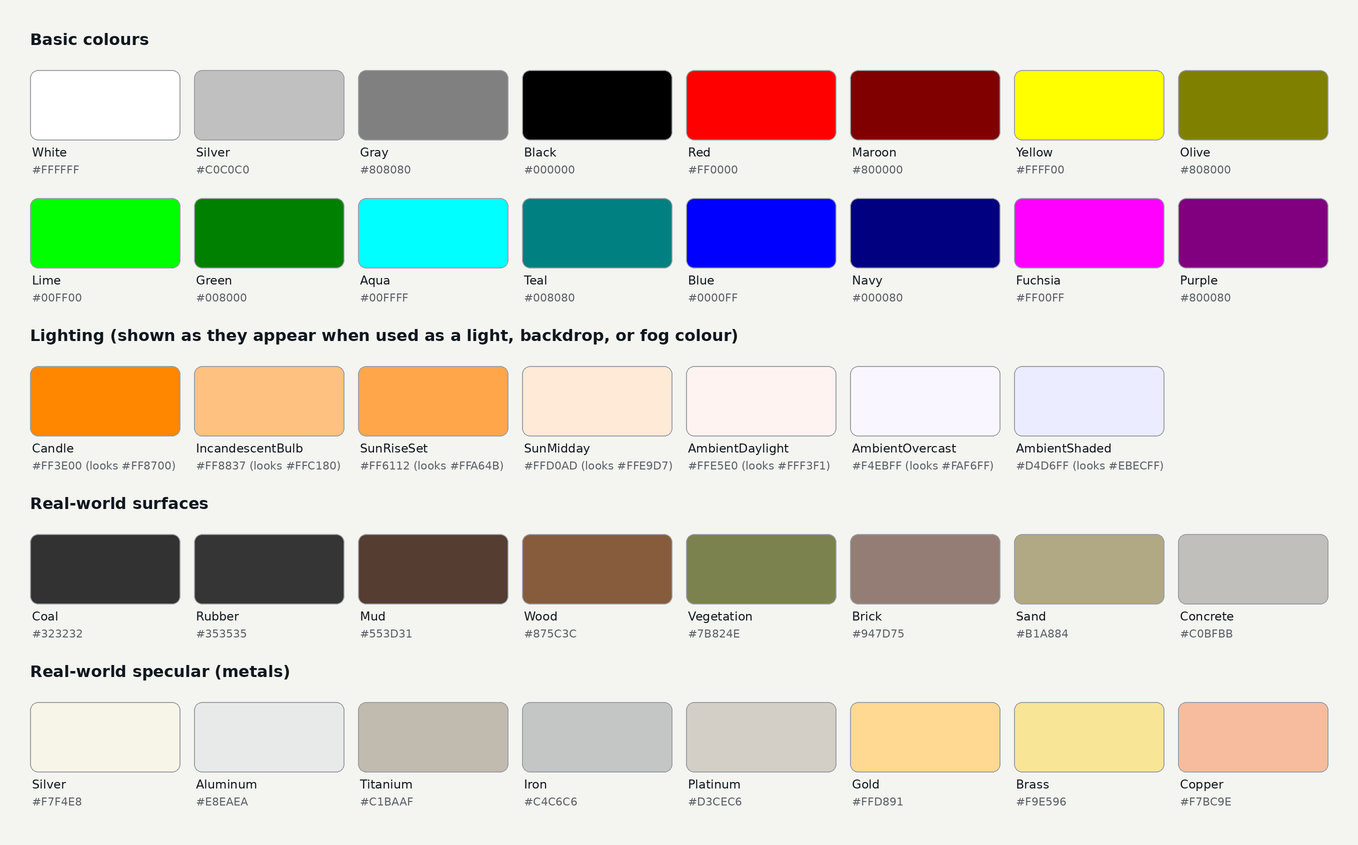
Every StandardColor. In the code, the lighting colours are prefixed with Lighting (e.g. StandardColor.LightingCandle), the surface colours with RealWorld (e.g. StandardColor.RealWorldBrick), and the metal colours with RealWorldSpecular (e.g. StandardColor.RealWorldSpecularGold).
- The basic colours are the 16 standard web colours.
- The
Lightingcolours are the typical colours of common light sources, for use as light, backdrop, or fog colours. They're stored as linear values so that they appear correctly when used in those places (which means they look darker and more vivid if used in a texture). - The
RealWorldcolours are the typical colours of common surfaces, for use in materials. Real-world surfaces are rarely as bright or vivid as the basic colours, so using these as a starting point helps materials look natural under realistic lighting. - The
RealWorldSpecularcolours are the typical colours of polished metals, for use as the colour of metallic materials.
Colour Spaces#
The same ColorVect can look different depending on where it's used, because TinyFFR uses two colour spaces:
- sRGB: Colours in textures, including color maps created from a
ColorVect(e.g.factory.TextureBuilder.CreateColorMap(color, includeAlpha: false)), are treated as sRGB. This is the colour space used by images, image editors, and the web, so a colour picked in an image editor appears as you'd expect. - Linear: Colours given directly to lights, backdrops, and fog are treated as linear values. In linear space, values are proportional to the actual amount of light, so the same value appears brighter than it would in sRGB (e.g. a linear 0.5 grey looks roughly like an sRGB 0.73 grey).
ColorVect.SrgbToLinear() and ColorVect.LinearToSrgb() convert between the two:
var pickedColor = ColorVect.FromRgb24(0x808080); // (1)!
scene.SetBackdrop(ColorVect.SrgbToLinear(pickedColor)); // (2)!
-
A mid-grey, as picked in an image editor (i.e. sRGB).
-
Converts the colour to linear before using it as the scene's backdrop, so the backdrop looks like the picked grey (and matches a material made with a color map of the same colour).
Tone Mapping
The final colours on screen are also adjusted by the renderer's post-processing (e.g. tone mapping, which fits the scene's full range of brightness in to what a display can show, and the camera's exposure). So even a colour in the correct colour space won't necessarily appear on screen with exactly the same values.