Material Effects
-
 In a nutshell...
- Material effects let each object alter the appearance of its material individually at runtime, without affecting any other object sharing the same material. Material Effects
- Effects must be enabled when the material is created (with
enablePerInstanceEffects: true), and are accessed via each object'sMaterialEffectsproperty. Enabling Effects - You can scale, rotate, and move the texture on the object's surface; or blend to a different texture for various map types. Texture Transforms, Texture Blending
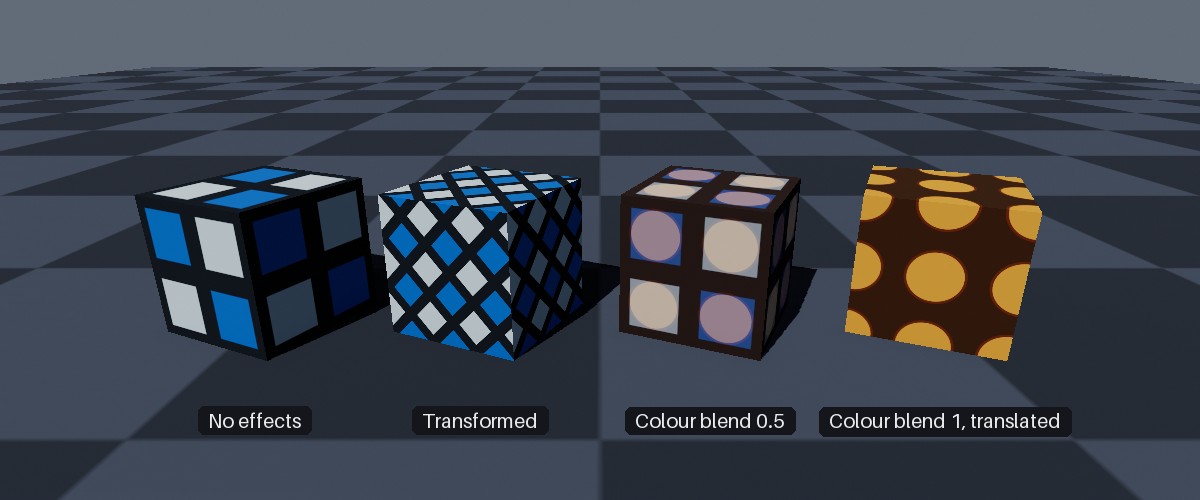
Four cubes all using the same material, each with different material effects applied.
Material Effects#
using var material = factory.MaterialBuilder.CreateStandardMaterial(
    colorMap,
    enablePerInstanceEffects: true // (1)!
);
using var instance = factory.ObjectBuilder.CreateModelInstance(mesh, material);

instance.MaterialEffects?.SetTransform(new Transform2D(rotation: 45f)); // (2)!
-
Effects must be enabled when the material is created.
-
Rotates the material's textures by 45° on this instance only. Any other object using
materialis unaffected.
Material effects let individual objects alter their material's appearance at runtime, for example scrolling a texture across a surface (e.g. flowing water or a conveyor belt), or gradually changing a surface from one texture to another (e.g. something rusting, burning, or being painted over).
Only the object you apply an effect to is altered. Every other object sharing the material keeps its original appearance.
Enabling Effects#
Material effects are only available on materials created with enablePerInstanceEffects: true (or the EnablePerInstanceEffects creation config property set to true). This can only be set when the material is created; you can check whether an existing material supports effects with its SupportsPerInstanceEffects property.
Per-Instance Effects Are Costly
Enabling per-instance effects makes a material markedly more expensive to render, whether or not any object actually uses them. Only enable this option for materials that need it.
The following material types support effects:
| Material Type | Texture Transforms | Blendable Maps |
|---|---|---|
| Standard | Yes | Color; ORM(R) (if the material has an ORM(R) map); Emissive (if the material has an emissive map) |
| Transmissive | Yes | Color; Absorption-Transmission; ORMR (if the material has an ORMR map); Emissive (if the material has an emissive map) |
| Lighting-Ignoring | Yes | Color |
Accessing Effects#
if (instance.MaterialEffects is { } effects) { // (1)!
    effects.SetTransform(new Transform2D(scaling: (2f, 2f)));
}
MaterialEffectsisnullwhen the object's current material doesn't support effects.
Every object that uses a material (i.e. model instances, quads (including camera-locked quads), and mutable grids) has a MaterialEffects property. It returns a MaterialEffectController for altering that object's effects, or null if the object's current material doesn't support effects.
Whether MaterialEffects is null depends on the material the object is currently using, so read the property again after changing an object's Material rather than storing the controller.
Texture Transforms#
instance.MaterialEffects?.SetTransform(new Transform2D(
    translation: (0.25f, 0f), // (1)!
    rotation: 30f, // (2)!
    scaling: (0.5f, 0.5f) // (3)!
));
-
Shifts the textures a quarter of their width to the right.
-
Rotates the textures 30° anticlockwise.
-
Squashes the textures to half their width and height (meaning they repeat twice as often across the surface).
SetTransform() takes a Transform2D that moves, rotates, and/or scales the material's textures across the object's surface. A Transform2D here means exactly the same as it does for texture pattern transforms: Translation is a fraction of the texture's width/height, positive rotations are anticlockwise, and scaling factors below 1f squash the texture (making it repeat more often) while factors above 1f stretch it.
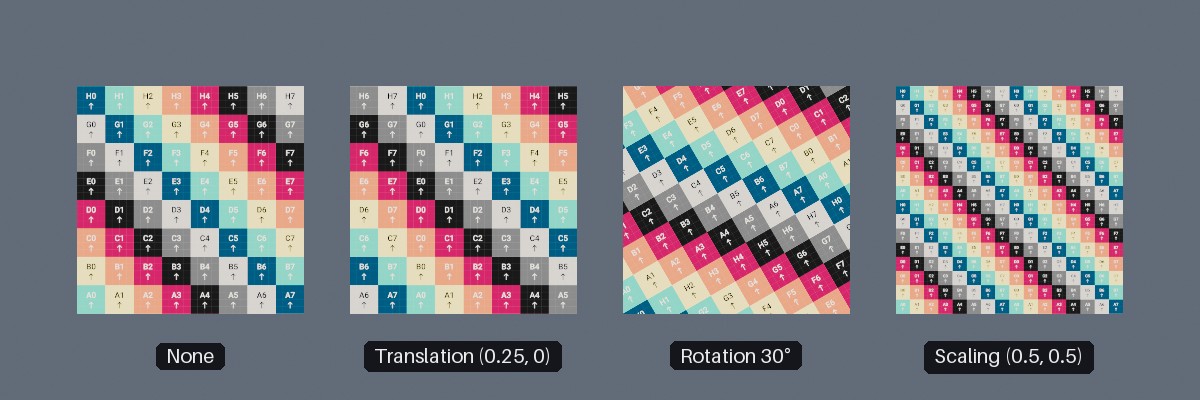
Four quads using the same lighting-ignoring material (displaying the UV testing texture), each with a different texture transform.
Things to note about texture transforms:
- The transform applies to all of the material's textures together (its color map, normal map, ORM(R) map, etc., and any blend textures), so every aspect of the surface moves as one.
- Rotation and scaling happen around the texture's origin (texture coordinate
(0, 0)). On a quad this is its bottom-left corner. - Textures repeat beyond their edges, so a translated, rotated, or squashed texture always fills the whole surface.
- Each call to
SetTransform()replaces the previous transform; it does not add to it. UseTransform2D.Noneto remove the transform.
To make a texture move continuously (e.g. flowing water or a conveyor belt), set a new transform each frame:
var scrollOffset = 0f;

// In your application loop:
scrollOffset = (scrollOffset + deltaTime * 0.1f) % 1f; // (1)!
instance.MaterialEffects?.SetTransform(new Transform2D(translation: (0f, scrollOffset)));
- Scrolls the textures upward by one tenth of their height per second. Wrapping the offset with
% 1fkeeps it small without visibly changing anything, as the texture repeats every1f.
Texture Blending#
using var rustColorMap = factory.AssetLoader.LoadColorMap(@"Assets/rust_color.png");

instance.MaterialEffects?.SetBlendTexture(MaterialEffectMapType.Color, rustColorMap); // (1)!
instance.MaterialEffects?.SetBlendDistance(MaterialEffectMapType.Color, 0.5f); // (2)!
-
Sets the texture to blend the material's color map towards on this instance.
-
Blends this instance's color map halfway towards
rustColorMap.
Texture blending gradually replaces one of the material's maps with a second texture (the blend texture):
SetBlendTexture()sets the blend texture for one of the material's maps.SetBlendDistance()sets how far the map is blended towards that blend texture:0fshows only the material's own map,1fshows only the blend texture, and values in between mix the two linearly.
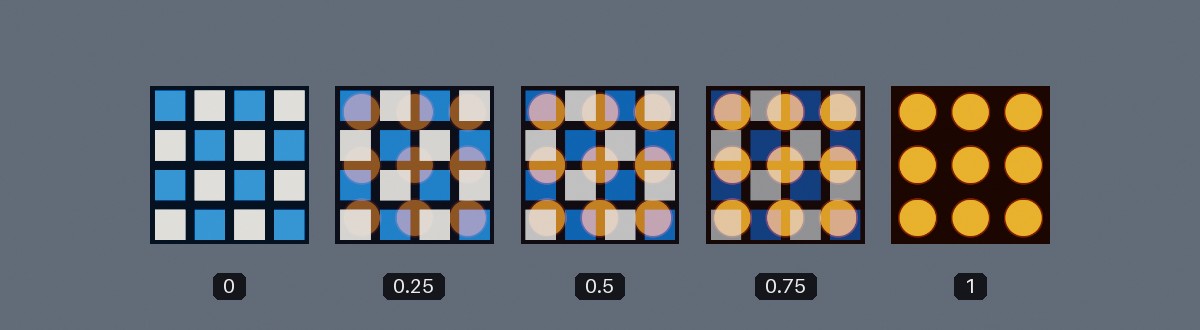
A color map blended towards a second color map at distances of 0, 0.25, 0.5, 0.75, and 1.
Each map is blended independently, with its own blend texture and distance. The first argument to both methods is a MaterialEffectMapType, which selects the map to blend:
-
MaterialEffectMapType.Color -
The material's color map. Supported by every material type that supports effects.
-
MaterialEffectMapType.OcclusionRoughnessMetallic/OcclusionRoughnessMetallicReflectance -
The material's ORM(R) map. Supported by standard and transmissive materials, but only if the material was created with an ORM(R) map. The two values are interchangeable.
-
MaterialEffectMapType.Emissive -
The material's emissive map. Supported by standard and transmissive materials, but only if the material was created with an emissive map.
-
MaterialEffectMapType.AbsorptionTransmission -
The material's absorption-transmission map. Supported by transmissive materials only.
Things to note about texture blending:
- Blending a map the material doesn't support (e.g.
Emissiveon a material created without an emissive map) silently does nothing. - The blend texture should be the same kind of map as the one it's blended with (e.g. a color map for
MaterialEffectMapType.Color, an emissive map forMaterialEffectMapType.Emissive, etc.). - Always set a blend texture before setting a blend distance. Setting a distance with no blend texture set does not leave the map untouched; it blends the map towards black.
- The distance is not limited to the range
0fto1f. Values outside that range push the map's values past either texture. Usually you'll want to stay in the range0fto1f. - The blend texture becomes a dependency of the object, so it can't be disposed while the object is still using it. Setting a different blend texture for the same map releases the previous one.
The blend texture only needs to be set once; after that, set the distance each frame to animate the blend:
var rustProgress = 0f;

// In your application loop:
rustProgress = MathF.Min(rustProgress + deltaTime * 0.05f, 1f); // (1)!
instance.MaterialEffects?.SetBlendDistance(MaterialEffectMapType.Color, rustProgress);
- Increases the blend distance by 0.05 per second (i.e. fully rusted after 20 seconds), never going beyond
1f.