Text Instances
-
 In a nutshell...
- A
TextInstanceplaces aFontStringin the world, drawn with aFontPen. Creating Text Instances - A
TextLayoutsets how big the text is and which point of it sits at the placed world position. Layout
- A
Text Instances#
using var font = factory.AssetLoader.LoadFont(); // (1)!
using var pen = font.CreatePen(BuiltInFontPenStyle.Default); // (2)!
using var greeting = font.CreateString("Hello, world!"); // (3)!

using var text = factory.ObjectBuilder.CreateTextInstance( // (4)!
    pen,
    greeting,
    position: new Location(0f, 1.5f, 3f),
    layout: new TextLayout(0.3f)
);
scene.Add(text); // (5)!

using var farewell = font.CreateString("Goodbye!");
text.String = farewell; // (6)!
-
Loads TinyFFR's default built-in font. See Loading Fonts.
-
Creates a pen (white text with a black outline).
-
Prepares a string of text, ready to be drawn.
-
Creates a text instance displaying the string, 0.3m tall, centred at (0, 1.5, 3), and facing backward (i.e. towards a camera looking forward).
-
Like any other object, text must be added to a scene to be rendered.
-
Changes what the text instance displays.
Drawing text in TinyFFR involves four types:
- A
Fontis a typeface, loaded from a font file or one of TinyFFR's built-in fonts; see Loading Fonts. - A
FontPendecides how text drawn with a font looks (its colours, outline, and background). - A
FontStringis a piece of text prepared for drawing with a font. - A
TextInstanceplaces a string in the world, drawn with a pen.
Pens and strings are both created from a font, and can each be used by any number of text instances.
A TextInstance is a specialized view of a ModelInstance, available via its UnderlyingModelInstance property. Disposing the text instance disposes its underlying model instance. Scene queries return the text's underlying ModelInstance; TextInstance.FromPreviouslyAllocatedUnderlyingModelInstance() can be used to reconstruct it from the ModelInstance. A ResourceGroup lists text instances under TextInstances (rather than ModelInstances).
Pens#
using var plainPen = font.CreatePen(StandardColor.White); // (1)!
using var outlinedPen = font.CreatePen(StandardColor.Yellow, StandardColor.Black, 0.3f); // (2)!
using var labelPen = font.CreatePen(BuiltInFontPenStyle.BlackWithBackground); // (3)!
-
White text, with no outline and no background.
-
Yellow text with a black outline.
-
Black text on a solid white background.
A FontPen determines how text looks when it's rendered. Pens are created with font.CreatePen(), which has the following overloads:
-
CreatePen(foregroundColor) -
Text in the given colour, with no outline and no background.
-
CreatePen(foregroundColor, outlineColor, outlineThicknessNormalized) -
Text with an outline drawn around each character.
outlineThicknessNormalizedsets the outline's thickness, from0f(no outline) to1f(the thickest outline possible). -
CreatePen(foregroundColor, backgroundColor) -
Text drawn on a solid rectangle of the background colour, rather than directly over the scene.
-
CreatePen(foregroundColor, outlineColor, outlineThicknessNormalized, backgroundColor) -
Outlined text on a background. Pass a fully transparent colour (e.g.
ColorVect.BlackTransparent) as the background for no background at all. -
CreatePen(builtInPenStyle) -
One of the ready-made combinations below, for when you simply need legible text without choosing colours yourself.
BuiltInFontPenStyle |
Text | Outline | Background |
|---|---|---|---|
Default |
Same as WhiteWithOutline (may change in future versions) |
||
WhiteWithOutline |
White | Black, thickness 0.5f |
None |
BlackWithOutline |
Black | White, thickness 0.2f |
None |
WhiteWithBackground |
White | None | Black |
BlackWithBackground |
Black | None | White |
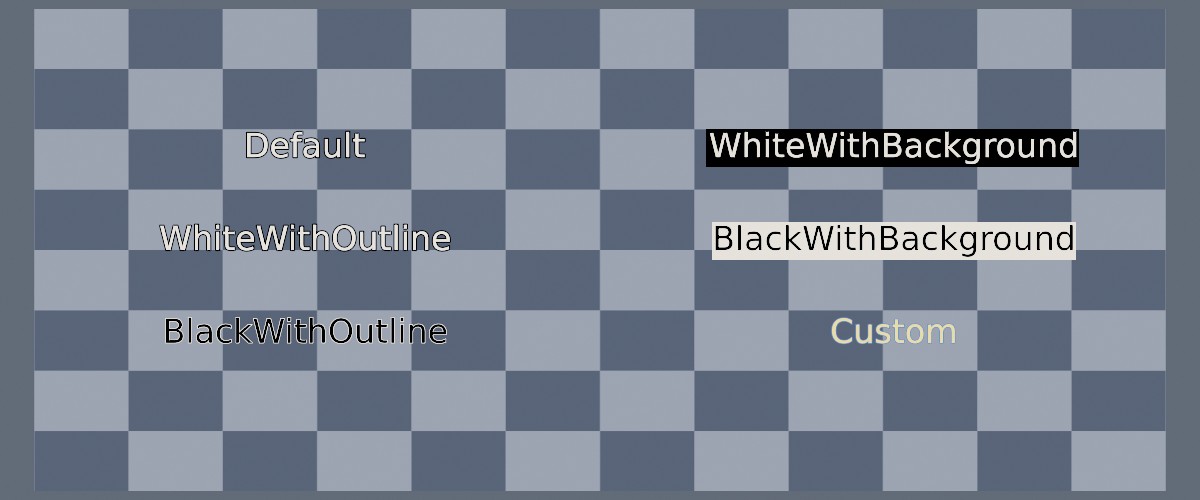
Text drawn over a chequered wall with each BuiltInFontPenStyle, plus a custom pen (yellow text with a thin blue outline).
Text is not affected by the lights in a scene: it's always drawn in exactly the colours its pen specifies, and is blended over whatever is behind it (so text without a background shows the scene through the gaps between characters). Outlines are the easiest way to keep text legible against a busy or changing background; backgrounds suit labels and signs.
A text instance's pen can be changed at any time via its Pen property, e.g. to highlight a selected label.
Strings#
using var fruit = font.CreateString("Apple"); // (1)!
using var shoppingList = font.CreateString("Pineapple\nBanana\nCherries", TextJustification.Left); // (2)!

var fruitSize = fruit.Size; // (3)!
var measuredSize = font.MeasureString("Hello, world!"); // (4)!
-
Prepares a single line of text.
-
Prepares three lines of text, aligned along their left edges.
-
The string's natural size, in metres.
-
Measures a piece of text without preparing it.
A FontString is a piece of text prepared for drawing with one or more TextInstances. Preparing a string for rendering requires some math and arrangement of the underlying geometry; this data is calculated once when the FontString is created and then re-used for every TextInstance. A string can be shown by any number of text instances at once.
Characters the font wasn't loaded with are drawn as a replacement character; see Missing Characters.
string.Size returns the string's natural size, in metres (before any layout is applied). font.MeasureString() returns the same measurement for any text without preparing it, which is useful for sizing or placing something around text in advance.
Cache FontStrings if Possible
A FontString can't be changed once it's created. To change what a text instance says, prepare a new FontString and assign it to the instance's String property; disposing the previous FontString if you no longer need it.
Preparing a string is not free. For text that changes often, if possible it's usually better to keep a small set of prepared strings and switch between them, rather than creating a new FontString every time.
Strings are created with font.CreateString(text, multiLineJustification). Line breaks (\n) split the text over several lines, and multiLineJustification (a TextJustification) aligns those lines against one another:
TextJustification |
Effect |
|---|---|
Center (default) |
Every line is centred. |
Left |
Every line starts at the same left-hand edge. |
Right |
Every line ends at the same right-hand edge. |
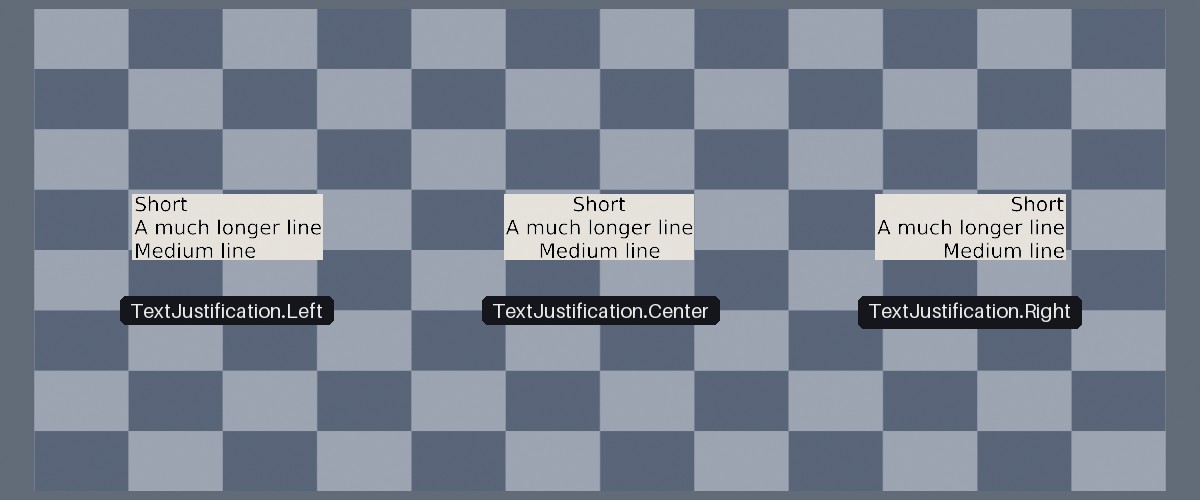
The same three lines of text with each TextJustification.
Creating Text Instances#
Text instances are created with factory.ObjectBuilder.CreateTextInstance(), which accepts the following parameters:
-
pen -
The
FontPento draw the text with. -
string -
The
FontStringto display. -
position -
Where to place the text. Which point of the text is placed here is set by the layout's
PositionAnchor(by default, its centre). -
facingDirection -
Which way the text faces (i.e. the direction it can be read from). Defaults to
Direction.Backward, which faces a camera looking in the forward direction. -
uprightDirection -
Which way is "up" across the text. Defaults to
Direction.Up(straightened againstfacingDirection, or an arbitrary perpendicular direction if the text faces straight up or down). -
layout -
A
TextLayoutsetting the text's size and anchor. Defaults to text 0.1m tall per line, centred onposition. See Layout. -
name -
An optional name for the text instance. If omitted, the name is derived from the string.
Alternatively, CreateTextInstance(pen, string, layout, config) takes a ModelInstanceCreationConfig, in which case the text's initial transform must be specified directly (font.GetTextInstanceTransform() calculates one from a position, facing direction, and layout).
Layout#
var simple = new TextLayout(0.25f); // (1)!
var anchored = new TextLayout(0.25f, Orientation2D.UpLeft); // (2)!
var fixedWidth = new TextLayout( // (3)!
    Height: null,
    PositionAnchor: Orientation2D.None,
    Width: 2f,
    DisableAutomaticLineCountBasedHeightScaling: false
);
-
Text 0.25m tall per line, centred on its position.
-
Text 0.25m tall per line, with its top-left corner at its position (so the text extends right and downward from it).
-
Text exactly 2m wide, with its height following from that.
A TextLayout defines how a given TextInstance is laid out (i.e. its sizing and positioning in 3D):
-
Height -
How tall each line of text is. Can be
null(see explanation below). See alsoDisableAutomaticLineCountBasedHeightScaling. -
Width -
How wide the whole block of text is. Can be
null(see explanation below). -
PositionAnchor -
Which point of the text sits at its position: e.g.
Orientation2D.Downfor the middle of its bottom edge,Orientation2D.UpLeftfor its top-left corner, orOrientation2D.None(the default) for its centre. -
DisableAutomaticLineCountBasedHeightScaling -
A multi-line string's total height is this multiplied by its number of lines, so a three-line string with a
Heightof0.1fis 0.3m tall. SettingDisableAutomaticLineCountBasedHeightScalingtotrueinstead makesHeightthe height of the whole block, squashing multi-line text to fit.
Height and Width can each be null:
- Only
Heightset The text is that tall per line, and as wide as it needs to be. This is the default. - Only
Widthset The text is that wide, and as tall as it needs to be (keeping its shape). - Both set The text is stretched or squashed to fit both constraints exactly.
- Neither set The text is 0.1m tall per line, and as wide as it needs to be.
A text instance's current layout can be read back via its Layout property.
Placing & Changing Text#
text.Position = new Location(0f, 2f, 3f); // (1)!
text.RotateBy(20f % Direction.Up); // (2)!
text.ScaleBy(1.5f); // (3)!

text.SetTransform( // (4)!
    position: new Location(0f, 0.01f, 2f),
    facingDirection: Direction.Up,
    uprightDirection: Direction.Forward,
    layout: new TextLayout(0.5f, Orientation2D.Down)
);
-
Moves the text's anchor point to (0, 2, 3).
-
Turns the text 20° around the up axis, pivoting around its anchor point.
-
Makes the text 1.5× bigger, growing around its anchor point.
-
Lays the text flat on the ground (facing upward, like a painted marking), 0.5m tall per line, with the middle of its bottom edge at the given position.
Text instances have all the usual transform members of an object (Position, Rotation, Scaling, MoveBy(), RotateBy(), ScaleBy(), etc.; see Scene Objects). The following details apply:
- A text instance's
Positionis its anchor point (set by its layout'sPositionAnchor), not necessarily its centre. Rotating or rescaling the text pivots around that point, and changing its string keeps that point where it is. (The text'sTransform.Translation, on the other hand, is always its centre.) SetTransform(position, facingDirection, uprightDirection, layout)places, orients, and sizes the text in one call, in the same terms as the creation parameters. The given layout replaces the text's current layout.- A text instance's
Scalingis two-dimensional (anXYPair<float>), and is relative to the text's natural size. Changing the text'sStringre-applies its layout, so the text is resized to fit the layout again (replacing any scaling you've set yourself). - Text is only visible from the front. For text that should be readable from anywhere, either turn it to face the viewer or use camera-locked text.
Lifetimes#
Pens and strings belong to the font they were created from:
- Anything still using a
FontPenorFontString(e.g. any liveTextInstance) must be disposed before the font or the pen/string; attempting to dispose a font whose pens or strings are still in use throws aResourceDependencyException. - Disposing a font also disposes every pen and string created from it. You don't need to dispose every string and pen first.
- Disposing a text instance does not dispose its pen or string, as they may still be in use elsewhere.
You can and should dispose pens and strings individually once nothing is using them (e.g. a string you've replaced and won't show again).
Camera-Locked Text#
using var label = factory.ObjectBuilder.CreateCameraLockedTextInstance(pen, greeting, position: new Location(0f, 2f, 0f));
Camera-locked text (CameraLockedTextInstance) has its facing direction 'locked' to always face the camera, so it always appears face-on, and can optionally keep a constant size on screen however far away it is. This is the usual way to draw names, labels, and markers above objects in the world.
Camera-locked text is explained in full on its own page: Camera-Locked Objects.